
Receipt Modes in Sales Voucher | POS invoice module in Sales Voucher |2022 Best Free Tally Prime TDL

21 March 2022

If we use Tally, can do lot’s of things for accounting and reporting. And in Tally have POS (Point of Sale) invoicing features also, that is an amazing feature. In POS invoicing we can describe Payment or Receipt Modes and there amount that help us to maintain outstanding of customers or cash billing. But this unique feature not find in normal Sales vouchers. So in this Tally Prime TDL we will add Receipt modes in normal sales vouchers like POS Invoice. With this Tally TDL we can add Receipt modes in Sales Voucher and also can create Receipt mode types.With this Free Tally Prime TDL, Now we can add receipt modes in Sales voucher that will help to remember payments by customer and help in collect outstanding. This works like POS Sales Invoice. HOW TO USE TDL FILE IN TALLY:  Copy Below TDL Code and make a Text file Load in Tally ERP9 or in Tally Prime (Method provided below) Now go for Sales Invoice – Click on Receipt Modes provided in Side toolbar button Create Receipt Modes type – like google paye, cash , etc. Now Create Invoice and select receipt modes in Invoice and Fill there amounts. This is best free TDL to have in your Tally . Must have TDL file for Tally ERP9 and Tally Prime that can use for lifetime. This free TDL Code will perfectly work with Tally Prime. Watch above video to learn : How to add Receipt Modes Master How to add Receipt Modes in Sales Vouchers FOLLOW THE BELLOW INSTRUCTIONS TO LOAD TDL FILE IN TALLY: Copy TDL code and make text file Save text file in your computer Copy the text file path including Name and extension (as – C:\Users\HP\Desktop\rec\Party Detail.txt) Open Tally ERP9  OR Tally Prime Press F12 and goto Product and Features (for Tally ERP9) Click on Help and click on TDL & Addon  (for Tally Prime) Press F4 (to open a Box)  Load TDL file on Startup – Yes Paste The path in blank space  Press enter and save  Now your TDL is ready to use.

Automatic Narration, Party Ledger, Taxable Ledger in Voucher | 2022 Best Tally Prime and Tally ERP9 TDL

20 March 2022

When we use Tally for Our Business Accounting. We realize it is very simple and very fast to use. We all know how important is finish our work on time. So today I have something special for your Tally Prime and Tally ERP9. With this we can save our lots of time while invoicing or vouching. If you want to save time and labour, then this TDL is for your Tally. Yes! with this TDL file we can add predecided Party Ledger name, Taxable Ledger name and also Narration with invoice number.In this Tally Prime and Tally ERP TDL code we can add some additional fields or we can remove extra fields according to our need, and this will work perfectly with Tally Erp9 and Tally Prime. Best simple tdl code to simplify and fasten our vouchers. HOW TO USE: Copy below TDL code and make a text file. Save text file then load in Tally ERP9 or in Tally Prime (Method provided below the code) Now go to voucher screen to create vouchers with auto narration and Ledgers. This is best free TDL to have in your Tally . Must have TDL file for Tally ERP9 and Tally Prime that can use for lifetime. This free TDL Code will perfectly work with Tally Prime. Watch above video to learn : How to add a Invoice number in Narration .  How to create vouchers with pre added ledgers. TDL Code :  HOW TO USE ABOVE CODE: Copy the code and paste in a Text file. Save the text file into your computer. Copy the text file path including Name and extension (as – C:\Users\HP\Desktop\rec\Party Detail.txt) Open Tally ERP9  OR Tally Prime Press F12 and goto Product and Features (for Tally ERP9) Click on Help and click on TDL & Addon  (for Tally Prime) Press F4 (to open a Box) Load TDL file on Startup – Yes Paste The path in blank space  Press enter and save  Now your TDL is ready to use.

Free Tally Prime and Tally ERP9 TDL – Voucher Type Changer and Voucher Numbering Automatic to Manual | 2022 Best TDL for Tally Prime

19 March 2022

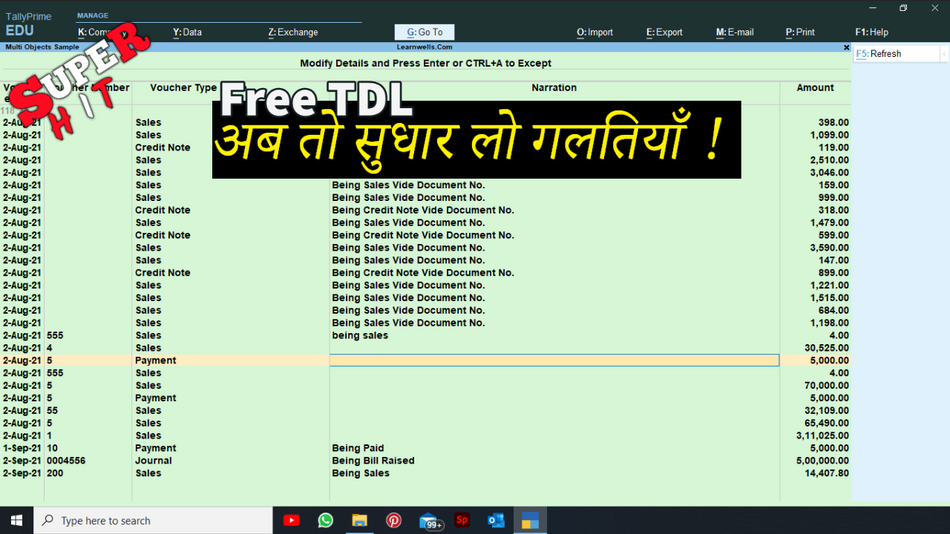
Sometime when we use Tally and need corrections for previous entries. When we wrongly entered voucher type and want to change it. But changing any voucher one by one, takes more time and going through lengthy process. And same if we want to change voucher numbering automatic to manual then our automatic voucher numbering gone blank. If you required change voucher type along with voucher numbering automatic to manual, then you are in right place. Now we can change voucher type and voucher number system in bulk with this free tally TDL. With this free Tally Prime TDL and Tally ERP9 TDL we can change voucher types and voucher numbering in bulk in few seconds. How to Use: Copy the below Tally TDL Code and make a Text file Load in Tally ERP9 or in Tally Prime (Method provided below) Now go to Daybook, You will find Two extra buttons in right side toolbar (Change Voucher Type and Change Voucher Numbering) Use Voucher type changer button to change voucher type and Voucher numbering button to change voucher numbering Automatic to Manual. This is best free TDL to have in your Tally . Must have TDL file for Tally ERP9 and Tally Prime that can use for lifetime. This free TDL Code will perfectly work with Tally Prime. TDL Code: Watch above video to learn : How to load TDL file in Tally. How to add toolbar buttons How to use Voucher Changer TDL code in Tally Prime HOW TO USE TDL CODE: Copy TDL code and Make a Text file Save into your computer. Copy the text file path including Name and extension (as – C:\Users\HP\Desktop\rec\Party Detail.txt) Open Tally ERP9  OR Tally Prime Press F12 and goto Product and Features (for Tally ERP9) Click on Help and click on TDL & Addon  (for Tally Prime) Press F4 (to open a Box) Load TDL file on Startup – Yes Paste The path in blank space Press enter and save 

Ledger and Outstanding Notes TDL for Tally Prime and Tally ERP9 | 2022 Best free Tally Prime TDL

16 March 2022

We all want to do business properly and collect outstanding timely to run business smoothly. So today I have something special for your Tally. When we reconcile any ledger accounts of debtors or creditors, we create some notes that can remember it for next time and save time in re-reconciliation. This is important to create notes for ledger account and can use to see in outstanding reports. If you use Tally software for your business accounting, you are in right place. With this free Tally Prime TDL and Tally ERP9 TDL we can add ledger notes that also can see in ledger outstanding report. HOW TO USE: Download TDL code with provided link Load in Tally ERP9 or in Tally Prime (Method provided below) Now go to Ledger Account to add notes (See the video for more detail) Also can see added notes in Outstanding Reports/Group Summary of Debtors or Creditors. This is best free TDL to have in your Tally . Must have TDL file for Tally ERP9 and Tally Prime that can use for lifetime. This free TDL Code will perfectly work with Tally Prime. Watch above video to learn : How to load TDL file in Tally. How to add Notes in Ledger Account TDL Code: HOW TO USE TDL CODE: FOLLOW THE BELLOW INSTRUCTIONS TO LOAD TDL FILE IN TALLY: Copy above TDL code and make a text file. Save into your computer. Copy the text file path including Name and extension (as – C:\Users\HP\Desktop\rec\Party Detail.txt) Open Tally ERP9  OR Tally Prime Press F12 and goto Product and Features (for Tally ERP9) Click on Help and click on TDL & Addon  (for Tally Prime) Press F4 (to open a Box) Load TDL file on Startup – Yes Paste The path in blank space Press enter and save 

Mailing Name TDL for Tally Prime | Vouchers with Party Mailing Name. Must have for cash billing | 2022 Best Free Tally Prime TDL

15 March 2022

If your most of billings in cash or you want customer mailing name along with cash, then this TDL is for your Tally. With this TDL file we can we can add party mailing name after party ledger at invoicing time. In this we can also add party mobile number to collect outstanding easily. And also can see Mailing names in Ledger report. In this Tally Prime and Tally ERP TDL code we can add some additional fields or we can remove extra fields according to our need, and this will work perfectly with Tally Erp9 and Tally Prime. Best simple tdl code to get mailing name in invoice screen and in ledger reports. HOW TO USE: Copy below TDL code and make a text file. Save text file then load in Tally ERP9 or in Tally Prime (Method provided below the code) Now go for invoicing and select party name and press enter write mailing name. This is best free TDL to have in your Tally . Must have TDL file for Tally ERP9 and Tally Prime that can use for lifetime. This free TDL Code will perfectly work with Tally Prime. Watch above video to learn : How to add extra fields in voucher screen. How to add extra fields in ledger summary. And Many More…… TDL Code :  HOW TO USE ABOVE CODE: Copy the code and paste in a Text file.  Save the text file into your computer.  Copy the text file path including Name and extension (as – C:\Users\HP\Desktop\rec\Party Detail.txt) Open Tally ERP9  OR Tally Prime Press F12 and goto Product and Features (for Tally ERP9) Click on Help and click on TDL & Addon  (for Tally Prime) Press F4 (to open a Box)  Load TDL file on Startup – Yes  Paste The path in blank space Press enter and save

Excel2Tally-Ultimate_Ecommerce

12 December 2021

This is Excel to Tally Ultimate E commerce Automation to Import your E-Commerce Data Entry into Tally with Easy and quick way. With this software we can import Masters and Vouchers with every detail. It work perfectly with Tally ERP9 and Tally Prime. Support GST and Vat Entries. It holds below features that make it best Excel to Tally E-Commerce Data Import software : Real time connection with Tally Match Excel sheet Ledgers and Stock Items direct with Tally and generate uncreated masters list. Direct One Click entry with excel ribbon feature. Auto Calculation columns of Cell address, Round off, Taxable Value etc with Validate Button Every time 25000 Entries with one click. Use lifetime and do unlimited entries. Import All E-Commerce portal data with single sheet by data picking feature. Direct Import button to choose E-Commerce portal files (Sales/settlement etc.) without any changes. Small and supportive file, work with every version of Excel Prevent Duplicate Entries. (Same voucher number entries will not done twice). Auto track to support multiple item in single voucher entry. Different Buttons (Clear, Import File, Validate, Post Master, Post Voucher including XML generation) in Excel Ribbon. Most simple import process make it best in this segment. Master and Voucher Import Facilities including Bank: Vouchers: 1. FULL DETAILED INVENTORY VOUCHERS. AND WITHOUT INVENTORY VOUCHERS IN SAME SHEET.2. WITH CLEAR, IMPORT, VALIDATE, POST MASTER AND POST VOUCHER BUTTONS IN EXCEL RIBBON.3. GET CSV, TEXT, EXCEL FORMATS DIRECTLY IN TO THE SHEET.4. AUTO CALCULATION FIELDS TO RELATE VOUCHERS AND ITEMS.5. SAME AMAZON, FLIPKART, MEESHO, GLOWROAD, SNAPDEAL, UDAAN, PAYTM, SIMSIM, MOGLIX, WMALL ETC SHEETS FORMAT INCLUDING OTHER ALL TYPE SUPPORTIVE FORMATS.6. WITH TCS AND GST EFFECTS7. NO BOUNDATION FOR DATES, USE LIFETIME8. MANUAL AND AUTOMATIC VOUCHER NUMBER SUPPORT WITH REFERENCE NUMBER9. DEBIT CREDIT WILL CALCULATE AUTOMATIC10. ALL LEDGERS WITH SHIPPING, WRAP, DISCOUNT, GST ,TCS ETC.11. PARTY STATE AND PLACE OF SUPPLY12. SUPPORT BILLWISE DETAILS13. GST DETAIL FOR CREDIT AND DEBIT NOTES14. ALL MASTERS LIKE, LEDGER, STOCK, UNIT ETC. CREATE WITH VOUCHER SHEET.15. NO MORE DUPLICATE VOUCHERS. ALWAYS CREATE UNIQUE VOUCHERS. Settlements: 1. SPECIAL SETTLEMENT VOUCHER2. WITH MULTIPLE REFERENCE ENTRY3. DIRECET GET TEXT / CSV / EXCEL FILES INTO THE SHEET4. AUTOMATIC CALCULATIONS AND SUMMURISED IN SAME SHEET5. WITH CLEAR, IMPORT, VALIDATE, POST MASTER AND POST VOUCHER BUTTONS IN RIBBON.6. SAME SETTLEMENT FORMATS AS DOWNLOADED FROM ECOMMERCE WEBSITE7. POSTING BANK RECEIPT AND EXPENSES JOURNAL AT SAME TIME.8. WITH GSTR 2A AND 3B EFFECT9. MASTERS WILL CREATE WITH SAME SHEET AT ENTRY TIME10. ALL TYPE ECOMMERCE DATA IMPORT WITH SAME SHEET. Bank: 1. BANK IMPORT WITH SIMPLE BANK FORMAT2. AUTOMATIC VOUCHER SELECTION3. SEPARATE CONTRA VOUCHER TYPE4. NO BOUNDATION FOR DATES, USE LIFETIME5. ENTRIES DONE WITH RECONCILATION6. DEBIT AND CREDIT LEDGER OPTION IN SAME COLUMN7. SHEET HAS MACRO BUTTONS: MASTER CHECK, TALLY LEDGER ALTER, POST IN TALLY. *SIMPLE AND FASTEST SHEET*IMPORT ALL ECOMMERCE DATA WITH SINGLE SHEET*UTILITY ALSO HAVE HELP SHEET*EVERY BUTTON HAS HELP OPTION WITH IT. MOVE CURSOR ON BUTTONS TO GET HELP. Contact Number: +91-9131810293 Emails : Learnwells@outlook.com, admin@e2t.in Other website: www.Learnwells.com Youtube : Learnwell

3. TDLTutorial: Steps to Create TDL Program and Implement in Tally

30 October 2021

Steps to create TDL program Open any ASCII text editor such as notepad, or use the IDE TallyPrime Developer. Create a new file Type TDL statements / TDL Code in the file. Save the file with a meaningful name and extension, as applicable to the editor. Save the file with an extension ‘. txt ’, ‘. tdl’ . Also can create a TCP file. Ways to implement TDL code in Tally: There are two ways of implementing the TDL code: Specifying the TDL files in Tally.ini (Configuration Settings File) Specifying the TDL files through TDL Management configuration in TallyPrime application. How to implement TDL file in Tally.ini The path of the TDL program has to be included in the Tally.ini file, using a parameter called ‘TDL’. If the parameter ‘User TDL’ is set to NO, TallyPrime will not read any TDL parameters specified in the Tally.ini file. Syntax Example When TallyPrime starts, it looks for a file named ‘MyReport.tcp’ or ‘MyReport.txt’ in the directory C:\TallyPrime. On loading the default TDL files into memory, TallyPrime reads and loads every TDL file mentioned in Tally.ini into memory before displaying the first Menu, ‘Gateway of Tally’. How to implement TDL file in TallyPrime Application TDL configuration screen Alternatively, the TDL file name can be specified in TDL Configuration screen, by going to F1: Help then TDLs & Add-Ons and clicking on F4: Manage Local TDLs. In this screen, set the value as Yes for Load selected TDL files on startup and select filename from the respective folders of your system.

2. TDLTutorial- Installing Tally Prime Developer

29 October 2021

TDL codes we can write in note pad or any text editor software, but Tally Prime Developer is best option for writing TDL codes for Tally Prime and Tally ERP9. At time of creating Tally TDL in Tally Prime Developer, it provide instructions to create a correct TDL file and save our lots of time. And also can use lot’s of sample files provided with Tally Prime developer. TallyPrime Developer TallyPrime Developer is a comprehensive development environment designed for Tally Definition Language (TDL). Tally Definition Language or TDL is the development language of TallyPrime. Benefits of TallyPrime Developer: Easy programming by syntax colouring, tagging and navigation of code, auto-completion, project management, and so on. Ease of debugging, with error listing and diagnosis. Build, compilation/validation/execution of code from within the product. Authorization techniques for TCP ( Tally Compliant Product ) ensuring IP protection, controlled license usage, and minimized revenue leakage. Easy distribution mechanism using licensing and subscription renewals. Easy customer serial number management. Access to the complete Tally source code, as a reference. Ability to load multiple versions of the source code. Instant references to TDL API’s such as schema, definition and attributes, functions, actions and so on.  Ability to extend multilingual support to the product, customisation, modules in localized languages with the powerful dictonery manager tool Tools that help to develop and test external application integration with TallyPrime (Tally connector). How to Start Using TallyPrime Developer.  You can start using TallyPrime Developer in a matter of minutes. All you need to do is download the setup file, install TallyPrime Developer, and then, activate the license. If you want to try TallyPrime before buying it, or you are a student, then you can use the Educational version. Download and Install TallyPrime Developer Downloading the application setup from download button or click on image provided in starting of this post. Downloading Setup is the first step in starting TallyPrime Developer. Once you download TallyPrime Developer setup file, you can install the application on your computer. Installation steps remain the same regardless of the TallyPrime Developer edition. Download the setup file. Install TallyPrime Developer. Double-click setup.exe. Double-click Install New. Configure Application Path, if needed.By default, the application will be installed at C:\Program Files\TallyPrimeDeveloper. Click Configure. Double-click Application Path change the path as needed. Close the List of Configurations window. Click Install.The application gets installed, and the following window opens. Click Start Developer to launch TallyPrime Developer. You can now Update, Uninstall, Alter, and Repair from the same setup as given below: You can activate the license, and thereafter, you can start using TallyPrime Developer. Activate New License Start your TallyPrime Developer.  Go to License > Activate. If you have a Single-Site license, then enter your TallyPrime Developer Serial Number, Activation Key, and Administrator e-mail IDHowever, if you have a Multi-Site license, then refer to Multi-Site Licensing in TallyPrime Developer for further details.Note: The e-mail ID provided here will be linked to your account, and used for all future communication and licensing activities. Press Enter to proceed. The Unlock License screen appears. Enter the Unlock Key sent to your e-mail ID.Note: If you have not received the unlock key, then press F2 (Get Unlock Key). Press Enter to unlock your license. Once your license is unlocked, the activation successful message appears. Once you activate the license, then you can start writing your first TDL program and go ahead. How to Start TallyPrime Developer in Educational Version | Try it for free If you want to try TallyPrime Developer before you buy, or just want to learn how to use the product, then you can use the Educational version for free. In this case, you can try all features in the product. However, there will be a few restrictions on using some of the features.  After installation you can start your TallyPrime Developer in Educational mode. Once you do that, you will observe that the staus bar of the application shows Educational Version. Free 90 days Evaluation Version: You can use all the features of the product for 90 days. However, you cannot analyse and check the version compatibility in this version. Users of Tally.Developer 9 – Move to TallyPrime Developer If you are an existing user of Tally.Developer 9 and if your subscription is active, then you can upgrade to TallyPrime Developer. Install TallyPrime Developer in a new folder. Once the license is configured, you can continue to use TallyPrime Developer. Update/Configure Using Tally.Developer 9 License Start your TallyPrime Developer. Click License > Reactivate Enter the Administrator e-mail ID and Tally.NET password in the Reactivate License screen, as shown below: Click Submit to reactivate. A confirmation message ‘License reactivated successfully’ appears once your license is reactivated. Note: If you are the administrator of more than one site, the Reactivate License screen displays a list of sites that can be reactivated. If you want to work in Tally.Developer 9, configure the license with the same IP address and port of the Tally Gateway Server where the TallyPrime Developer License is running. Steps to configure the TallyPrime Developer license for Tally.Developer 9 Open Tally.Developer 9 Go to License > Configure existing license If you know the computer name or IP address and port number of the installed Tally Gateway Server, enter the details manually. OR Click the option Search Gateway Server(s) and select the appropriate license from the List of Compatible Tally Gateway Server screen. LearnTDL:

1. TDLTutorial- Create First TDL

28 October 2021

The description, usage and detailed explanation of each component will be taken up in the subsequent chapters. If you want to use your first TDL(Tally Developer Language) , must use basic structure of TDL. The Report is executed from the existing Menu ‘Gateway of Tally’. Purpose: To invoke a new Report displaying the text “Welcome to the world of Engage to Tech ” from the main Menu ‘Gateway Of Tally’: This code adds a new Menu Item First TDL in the ‘Gateway Of Tally’ menu. When the Menu Item has selected the report, the Report ‘First TDL Report’ is displayed. The report is in ‘Display’ mode, as the action ‘Display’ is specified while adding the menu item ‘First TDL’. User inputs are not accepted in this report. The text ‘Welcome to the world of Engage to Tech’ is displayed in the Report, since it contains only one field. In this you will find that : in a bracket [..] is definition Display is action keyword. It mean you want to display your report in main screen (Gateway of Tally). Report is your definition type. Where “My Report” – action keyword should be same name as in action display keyword After definition word used like : Part, Line, Field called attribute and after that given name called attribute value. As under field definition we used “Use”, called attribute modifier. And as formula we used “My Formula”, called formula name And at end we can show our comment with ; semicolon. That’s all So watching after above image we know writing module of a TDL code: First give name about Report and create it’s definition. Second give name of form and it’s definition. Third give name of Part and it’s definition. Fourth give name of Line and it’s definition. the in last give name of Field and it’s definition. In the field we can show our report as we want. So after understanding above TDL module, we can say: First write Report – Under Report is Form – Under Form is Part – Under Part is Line – Under Line is Field. If we under stand above module of TDL we can write any TDL code.

Excel to Tally-XML

25 October 2021

THIS Excel2Tally-TOTAL SOFTWARE HELP YOU TO EXPORT EXCEL DATA INTO TALLY ERP9, TALLY PRIME OR OTHER VERSION OF TALLY LIKE TALLY 7.2, TALLY ERP, OR GST/VAT READY TALLY WITH XML FILE. IT IS VERY USEFUL SOFTWARE AND SAVE YOUR LOTS OF TIME. NO RENEWAL REQUIRED- USE LIFETIME WITH MULTI COMPUTER. ALL FORMATS ACCORDING TO YOUR REQUIREMENT.NOW YOU CAN TRANSFER YOUR EXCEL SHEET DATA WITH XML GENERATOR. WITH THIS SOFTWARE YOU CAN IMPORT YOUR ACCOUNTING AND INVENTORY VOUCHERS WITH STOCK AND LEDGER MASTERS, AND ALSO PAYROLL VOUCHERS WITH EMPLOYEE MASTERS, AND ALSO CAN UPLOAD YOUR BANK STATEMENT DIRECTLY IN TALLY. IN THIS UPDATED VERSION CAN IMPORT EASILY WITH ALL REQUIRED DETAILS ACCORDING TO YOUR DATA. CAN DO THESE TYPE ENTRIES: ALL TYPE TALLY MASTERS WITH EVERY DETAIL INCLUDING BOM IN STOCK. ALL TYPE INVENTORY AND ACCOUNTING VOUCHERS INCLUDING ORDER VOUCHERS WITH MULTI UNIT AND MULTI GST. STOCK JOURNAL/MANUFACTURING JOURNAL VOUCHERS AND MULTI LEDGER VOUCHERS WITH EVERY DETAIL. ALL VOUCHERS WITH COST CENTER AND MULTIPLE BILL WISE REFERENCES. PAYROLL AND ATTENDANCE WITH EMPLOYEE MASTERS. BANK UPLOAD. USE LIFETIME WITH MULTI COMPUTERS. Contact Number: +91-9131810293 Emails : Learnwells@outlook.com, admin@e2t.in Other website: www.Learnwells.com Youtube : Learnwell