
Always required Excel in a business or accounting to maintain books of income, expenses and taxes etc. Excel is most usable software for calculations/presentations for a business. And also lots of businesses use Tally to maintain books properly. If it possible to connect Tally with Excel to fetch Tally Data into Excel then our most of problems will be solved. This Tally to Excel data import method will be “Sanjeevani” for CA and accountants.
So this can possible through Excel Power Query and Tally ODBC connectivity. To Import Tally Data into Excel most powerful and fastest way is Excel Power BI. We can import any report of Tally directly into excel through this Power BI method.
After reading this post you will be able to import GST summary from Tally to Excel and can refresh it every time after any changes.
Required Tools/Codes to connect Tally with Excel:
- Microsoft Excel
- Tally Software
- Tally ODBC URL
- XML Schema for Export
- Report Name
Follow below Steps to Import Data from Tally to Excel:
- Open Tally and Excel
- Go to Excel Data Tab – New Query – From Other Source – Blank Query
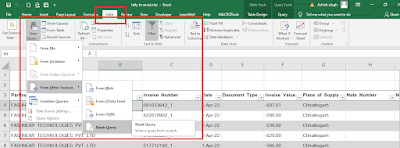
- We can change Query Name in properties section at right hand side.
- Go in Home Tab and in Advance Editor
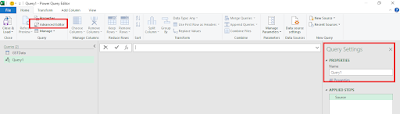
- Paste Below Code in Advance Editor:
let
    url = "http://localhost:9000",
    _body = "<ENVELOPE>
<HEADER>
<TALLYREQUEST>Export Data</TALLYREQUEST>
</HEADER>
<BODY>
<EXPORTDATA>
<REQUESTDESC>
<STATICVARIABLES>
<SVEXPORTFORMAT>ASCII (Comma Delimited)</SVEXPORTFORMAT>
<SVFROMDATE>DATE1</SVFROMDATE>
<SVTODATE>DATE2</SVTODATE>
</STATICVARIABLES>
<REPORTNAME>GSTR2TrglActionWise DrillDown</REPORTNAME>
</REQUESTDESC>
</EXPORTDATA>
</BODY>
</ENVELOPE>",
    FromDate = Date.ToText(#date(2022, 04, 01)),
    ToDate = Date.ToText(#date(2022, 04, 02)),
    body = Text.Replace(Text.Replace(_body, "DATE1", FromDate), "DATE2", ToDate),
    Source = Csv.Document(Text.Replace(Text.FromBinary(Web.Contents(url, [Content=Text.ToBinary(body, TextEncoding.Utf16), Headers=[#"Content-Type"="text/xml;charset=utf-16"]]), TextEncoding.Utf16), ",#(cr,lf)", "#(cr,lf)"), { "Particulars", "GSTIN", "Invoice Number","Date", "Document Type", "Invoice Value","Place of Supply", "Note Number", "Note Date","Status","Taxable Value","IGST Amt","IGST Eligible Amt","CGST Amt","CGST Eligible Amt","SGST Amt","SGST Eligible Amt","Cess Amt","Cess Eligible Amt"})
in
Source- After pasting above code in advance editor press Done
- Now you can see Tally reports in Excel Power query home
- Go to Home Tab – Click on “Close and Load” or “Close and Load to…”

- If select Close and Load to… then you can choose Excel reference sheet and cell to show Data.
- Now you will find all your Tally data to related reports in Excel.
- Refresh Excel sheet to recollect data from Tally
- Change Date in Power query Advance editor code as per your requirement.

Watch above video for more details.
How to See and enable Tally ODBC Port : Click Here
-
Convert PDF and Images to Excel Automatically with AI
Convert PDF and Images to Excel Automatically with AI. Whether you are an accountant managing hundreds of invoices or a data specialist handling complex reports, AI-powered OCR technology is your new secret weapon. USE BELOW TOOL TO CONVERT PDF OR IMAGE TO EXCEL TABLE Convert PDF and Images to Excel Automatically with AI Use this…
-
The Ultimate Excel to Tally Bank Import Utility Online
We have launched a powerful Online Bank to Tally Utility at e2t.in. This Excel to Tally Bank Import Utility Online is designed to simplify your workflow, allowing you to convert Excel bank statements into Tally-ready data in seconds. How to Use Excel to Tally Bank Import Utility Online Also check online PDF and Image to…
-
2025 Best Item Sales History Tally Prime TDL | Free Tally Prime TDL to See Item Sale History
2025 Best Item Sales History Tally Prime TDL. Tally Prime is a Best Business software, you can also use it for accounting purpose. Tally is very simple software to use but sometimes we need more flexibility and more simplicity, so we use TDL files. In Tally Prime, keeping track of item sales history while invoicing…