
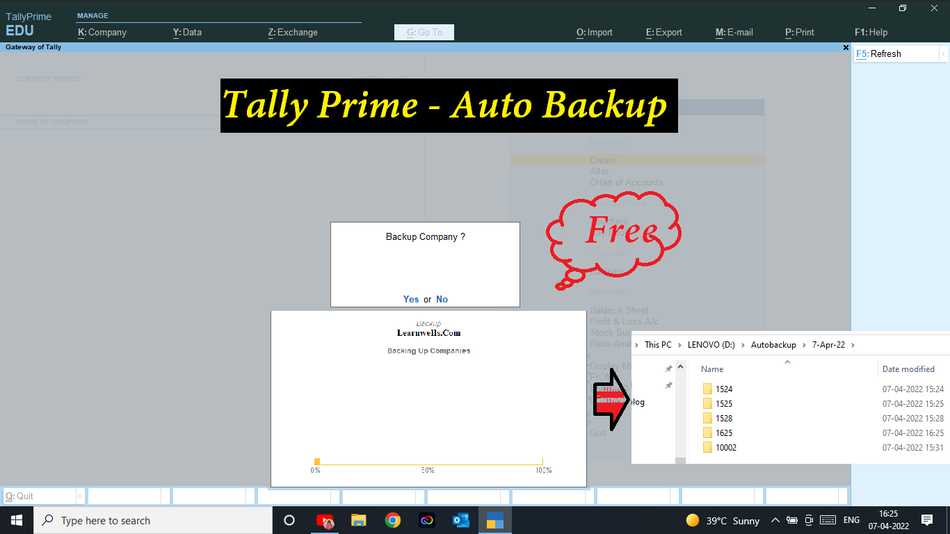
We always work hard and want to try finish our work on time. In life we can not restore our past life backup. But in Tally software it allow to restore data backup and works smoothly without any error.It is very important in working to take software backups to solve our mistakes by restoring data backup.If you use Tally Prime or Tally ERP9, this Auto backup TDL will help to create backups of data at company open and company close time. And always this will help to remember to create backup file of your working company.This is must have Tally TDL for Tally Prime and Tally ERP9.With this Free Tally Prime TDL, Now we can create Tally Data backups without any fail.
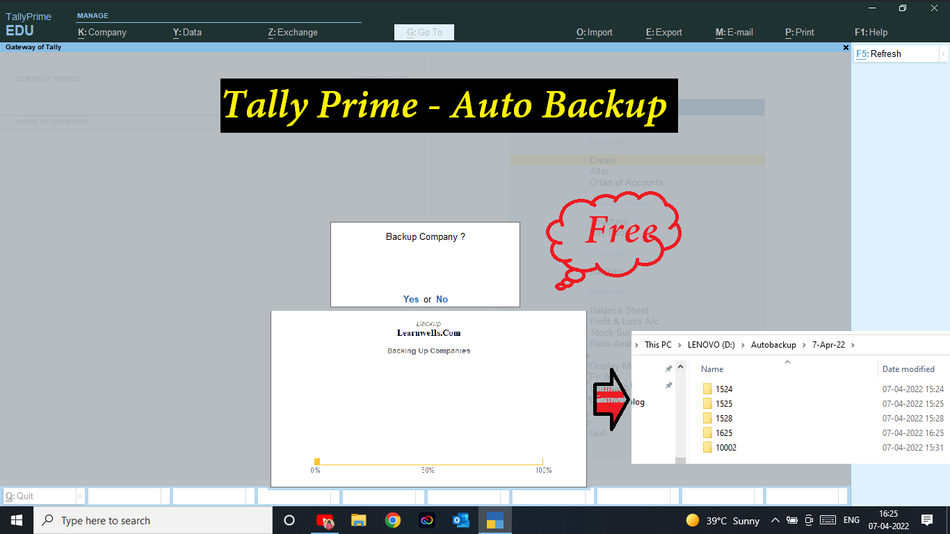
This is best free TDL to have in your Tally . Must have TDL file for Tally ERP9 and Tally Prime that can use for lifetime. This free TDL Code will perfectly work with Tally Prime.
HOW TO USE:
- Copy TDL code and Make a text file and save it in your computer.
- Load in Tally ERP9 or in Tally Prime (Method provided below)
- When open or close any company it will ask to take backup of Tally Data
- Press enter or Click on Yes to create a back of files with Date and Time
- You can change Tally Backup path in code
Tally Backup TDL Code:
[System: Events]
TSPL Smp CmpLoadEvent2 : Load Company : NOT $$IsRemoteCompany : Call : Backup Function
TSPL Smp CmpCloseEvent : Close Company : NOT $$IsRemoteCompany : Call : Backup Function

[Function: Backup Function]
Variable : Backup Det Var: String
00 : IF : ##EnableAutoBackup
10 : IF : ##AutoBackupPrompt
20 : QUERYBOX : "Backup Company ?" : Yes:No
30 : IF : $$LastResult
40 : CALL : Backup Company
50 : ENDIF
60 : ELSE :
70 : CALL : Backup Company
80 : ENDIF
90 : ENDIF

[Function: Backup Company]
10 : SET : BackupDetVar : @@DestPath + ", " + ##SVCurrentPath + ", " + ##SVCurrentCompany + +
", " + @@CoNumber
20 : BACKUP COMPANY : "," : ##BackupDetVar
30 : SET : SVBackupPath : @@DestPath
;;www.learnwells.com
[System: Formula]
DestPath : ##DestinationPath + "\" + @@DateForm + "\" + @@TimeForm
CoNumber : $$String:($CompanyNumber:Company:##SVCurrentCompany):5
DateForm : $$String:$$MachineDate
TimeForm : @@HrsForm + @@MtsForm
HrsForm : If $$StringPart:$$MachineTime:0:2 CONTAINS ":" +
Then $$StringPart:$$MachineTime:0:1 +
Else $$StringPart:$$MachineTime:0:2
MtsForm : if $$StringPart:$$MachineTime:0:2 CONTAINS ":" +
Then $$StringPart:$$MachineTime:2:2 +
Else $$StringPart:$$MachineTime:3:2
;www.learnwells.com
[Variable: EnableAutoBackup]
Type : Logical
Persistent : Yes
[Variable: DestinationPath]
Type : String
Persistent : Yes
[Variable: AutoBackupPrompt]
Type : Logical
Persistent : Yes
[System: Variable]
EnableAutoBackup: Yes
DestinationPath : "D:\Autobackup"
AutoBackupPrompt: Yes
;;www.learnwells.com
HOW TO USE TDL CODE:
- Copy above TDL code and make a text file
- Save text file in your computer
- Copy text file path including its name and extension (as – C:\Users\HP\Desktop\rec\Party Detail.txt)
- Open Tally Prime or Tally ERP9
- Press F12 and goto Product and Features (for Tally ERP9)
- Click on Help and click on TDL & Addon (for Tally Prime)
- Press F4 (to open a Box)
- Load TDL file on Startup – Yes
- Paste The path in blank space
- Press enter and save
Now your TDL is ready to use.
Watch above video to learn :
- How to create backup of Tally Data.
- How to see backup list with date and time.
-
How to Send Invoices Directly from TallyPrime to WhatsApp (New Automation TDL)
In today’s fast-paced digital business environment, waiting days for an email invoice to be opened is a thing of the past. Customers now expect instant communication, and WhatsApp has become the ultimate tool for quick business transactions. But if you are using Tally Prime, exporting a PDF and manually sending it to a client’s WhatsApp…
-
Free Excel to Tally
Tally XML Converter Use Excel,Text,CSV etc file. Columns should be same as Templates. Paste Data-Choose XML Type-Click on Create File and Download. Paste XML file path in Tally Import to Create Entry. Click for Learning Videos LEARNWELL VIDEO. Create file
-
PHP
Import Data into Tally Import Data into Tally Excel File: