

We all want to do business properly and collect outstanding timely to run business smoothly. So today I have something special for your Tally. When we reconcile any ledger accounts of debtors or creditors, we create some notes that can remember it for next time and save time in re-reconciliation. This is important to create notes for ledger account and can use to see in outstanding reports. If you use Tally software for your business accounting, you are in right place. With this free Tally Prime TDL and Tally ERP9 TDL we can add ledger notes that also can see in ledger outstanding report.
HOW TO USE:
- Download TDL code with provided link
- Load in Tally ERP9 or in Tally Prime (Method provided below)
- Now go to Ledger Account to add notes (See the video for more detail)
- Also can see added notes in Outstanding Reports/Group Summary of Debtors or Creditors.
This is best free TDL to have in your Tally . Must have TDL file for Tally ERP9 and Tally Prime that can use for lifetime. This free TDL Code will perfectly work with Tally Prime.
Watch above video to learn :
- How to load TDL file in Tally.
- How to add Notes in Ledger Account
TDL Code:
[#Line:DSP ACCLine]
Option:LWTT
[!Line:LWTT]
Add:fields:LearnwellOSnotes
[Field:LearnwellOSnotes]
Storage     : LWLdrNotes
Width:@@Ledger
Color:Red
Alter:LWLdrNotes
[#Line: DSP VchTotalAmt]
    Add: Line: At End: LWLedgrNote

[Line: LWLedgrNote]
    Field:MEDIUM PROMPT,LWLedgrNote
    LOCAL:Field:MEDIUM PROMPT:Info:"NOTES"
    LOCAL:Field:MEDIUM PROMPT:Invisible:$$IsEmpty:$LWLdrNotes:LEDGER:#LEDGERNAME
    LOCAL:Field:MEDIUM PROMPT:Background: RED

[Field: LWLedgrNote]
    Width:100% SCREEN
    Border:thin left right
    set as:$LWLdrNotes:LEDGER:#LEDGERNAME
    Alter:LWLedgrNote
    Background: BLACK
    Invisible:$$IsEmpty:$LWLdrNotes:LEDGER:#LEDGERNAME
    Color: WHITE
    Style: BOLD
[BUTTON:LWLedgrNote]
    Title: Notes
    Key:ALT+N
    Action    :  Alter        : LWLedgrNote
    Width            : 6.5% Screen
    Height            : 5% Screen
    [#Form: LEDGER VOUCHERS]
        Add: ButtonS:LWLedgrNote


    [Report:LWLedgrNote]
        Form:LWLedgrNote
        Object:Ledger:#LEDGERNAME

    [Form:LWLedgrNote]
        Part:LWLedgrNote1
    [Part:LWLedgrNote1]
        Line:LWLdrNotes
    [#Part: LEDNotes]
        Add:Line:At End:LWLdrNotes

  [Line:LWLdrNotes]
        Field       : Short Prompt, LWLdrNotes
        Local       : Field: Short Prompt   : Setas : $$LocaleString:"NOTES:"
  [Field: LWLdrNotes]

        Full Width    : Yes
        Max         : 250
        Storage     : LWLdrNotes
        Invisible   : ##MVInMultiMode
[System:UDF]
    LWLdrNotes:String:1021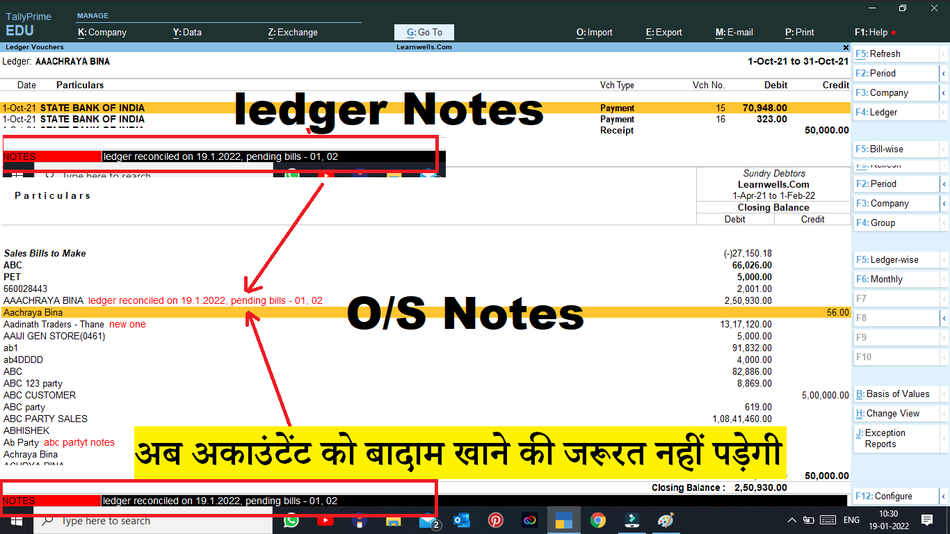
HOW TO USE TDL CODE:
FOLLOW THE BELLOW INSTRUCTIONS TO LOAD TDL FILE IN TALLY:
- Copy above TDL code and make a text file.
- Save into your computer.
- Copy the text file path including Name and extension (as – C:\Users\HP\Desktop\rec\Party Detail.txt)
- Open Tally ERP9 OR Tally Prime
- Press F12 and goto Product and Features (for Tally ERP9)
- Click on Help and click on TDL & Addon (for Tally Prime)
- Press F4 (to open a Box)
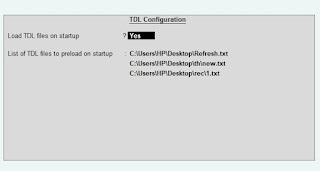
- Load TDL file on Startup – Yes
- Paste The path in blank space
- Press enter and save
-
How to Send Invoices Directly from TallyPrime to WhatsApp (New Automation TDL)
In today’s fast-paced digital business environment, waiting days for an email invoice to be opened is a thing of the past. Customers now expect instant communication, and WhatsApp has become the ultimate tool for quick business transactions. But if you are using Tally Prime, exporting a PDF and manually sending it to a client’s WhatsApp…
-
Free Excel to Tally
Tally XML Converter Use Excel,Text,CSV etc file. Columns should be same as Templates. Paste Data-Choose XML Type-Click on Create File and Download. Paste XML file path in Tally Import to Create Entry. Click for Learning Videos LEARNWELL VIDEO. Create file
-
PHP
Import Data into Tally Import Data into Tally Excel File: