

When we use Tally for Our Business Accounting. We realize it is very simple and very fast to use. We all know how important is finish our work on time. So today I have something special for your Tally Prime and Tally ERP9. With this we can save our lots of time while invoicing or vouching. If you want to save time and labour, then this TDL is for your Tally. Yes! with this TDL file we can add predecided Party Ledger name, Taxable Ledger name and also Narration with invoice number.In this Tally Prime and Tally ERP TDL code we can add some additional fields or we can remove extra fields according to our need, and this will work perfectly with Tally Erp9 and Tally Prime. Best simple tdl code to simplify and fasten our vouchers.
HOW TO USE:
- Copy below TDL code and make a text file.
- Save text file then load in Tally ERP9 or in Tally Prime (Method provided below the code)
- Now go to voucher screen to create vouchers with auto narration and Ledgers.
This is best free TDL to have in your Tally . Must have TDL file for Tally ERP9 and Tally Prime that can use for lifetime. This free TDL Code will perfectly work with Tally Prime.
Watch above video to learn :
- How to add a Invoice number in Narration .
- How to create vouchers with pre added ledgers.
TDL Code :
[#Field:EI Consignee]
Set As:"Cash"
[#Field:EI CommonLed]
Set As:if($$IsSales:##SVVoucherType) then "Sales Accounts" else if ($$IsPurchase:##SVVoucherType) then "Purchase Accounts" else ""

[#Field:Vch Narration]
;set as : "Being " + #VCHType + " Vide Document No.  " + #VCHNumber
Set As:if($$IsSales:##SVVoucherType) then "Being Sales Vide Inv no. " + #VCHNumber else if ($$IsPurchase:##SVVoucherType) then "Being Purchase vide inv No. " + #VCHNumber else ""
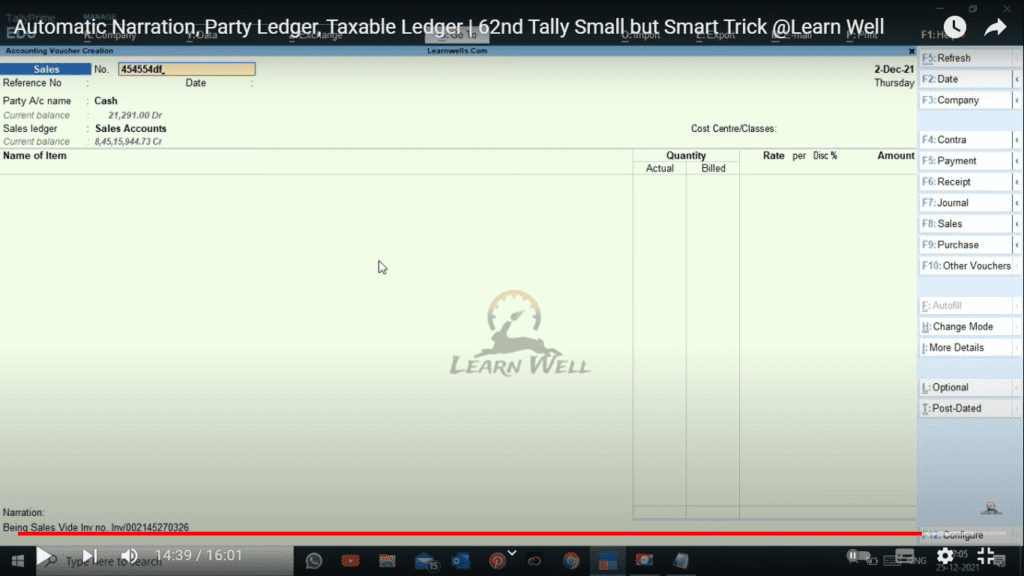
HOW TO USE ABOVE CODE:
- Copy the code and paste in a Text file.
- Save the text file into your computer.
- Copy the text file path including Name and extension (as – C:\Users\HP\Desktop\rec\Party Detail.txt)
- Open Tally ERP9 OR Tally Prime
- Press F12 and goto Product and Features (for Tally ERP9)
- Click on Help and click on TDL & Addon (for Tally Prime)
- Press F4 (to open a Box)
- Load TDL file on Startup – Yes
- Paste The path in blank space
- Press enter and save
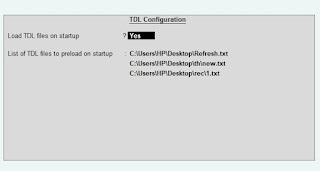
Now your TDL is ready to use.
-
How to Send Invoices Directly from TallyPrime to WhatsApp (New Automation TDL)
In today’s fast-paced digital business environment, waiting days for an email invoice to be opened is a thing of the past. Customers now expect instant communication, and WhatsApp has become the ultimate tool for quick business transactions. But if you are using Tally Prime, exporting a PDF and manually sending it to a client’s WhatsApp…
-
Free Excel to Tally
Tally XML Converter Use Excel,Text,CSV etc file. Columns should be same as Templates. Paste Data-Choose XML Type-Click on Create File and Download. Paste XML file path in Tally Import to Create Entry. Click for Learning Videos LEARNWELL VIDEO. Create file
-
PHP
Import Data into Tally Import Data into Tally Excel File: