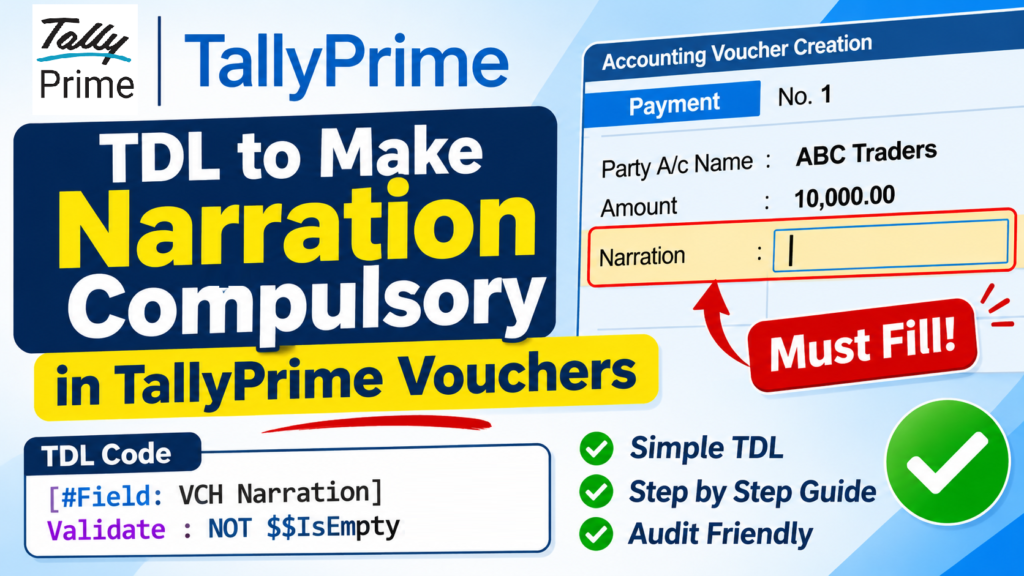
Open any old voucher in Tally and you will often find the narration field empty. Months later, during audit or when a party disputes a payment, nobody remembers why that entry was passed. In this post you will get a very small TDL that makes narration compulsory in TallyPrime, and we will also explain each line so you can change it for your own needs.
Why make narration compulsory?
Narration is the only place in a voucher where you can write the reason for an entry in plain words. A cheque number, a bill reference, “advance for March order”, “freight paid on behalf of party” and so on. When narration is skipped, the ledger shows only amounts and dates.
Most offices tell their data entry staff to always write narration. In practice, when work is heavy, people press Enter and move on. A small validation in TDL solves this. The cursor will not leave the narration field until something is typed in it.
- Audit queries become easier to answer because each entry carries its own reason.
- Payment and receipt vouchers can be matched with bank statements faster when the cheque or UTR number is written in narration.
- New staff learn the habit quickly because Tally itself reminds them.
The TDL code
This is the complete TDL. It has only one definition and one attribute.
;; Make narration compulsory in vouchers
;; Test in a test company first

[#Field: VCH Narration]
    Validate : NOT $$IsEmpty:$$Value
Please test this in a test company or a backup copy of your data first, and only then load it on your live company.
How this TDL works, line by line
If you are new to TDL, this short code is a good way to understand how TDL changes the default behaviour of TallyPrime.
- Lines starting with ;; are comments. Tally ignores them. Use comments to note what the code does and who wrote it.
- [#Field: VCH Narration] means “modify the existing field named VCH Narration”. The # sign tells Tally that we are not creating a new field, we are altering a field that already exists in the default TDL. VCH Narration is the field in the voucher screen where narration is typed.
- Validate is a field attribute. It takes a condition. If the condition is false, Tally does not accept the value and keeps the cursor in the same field.
- $$Value returns whatever the user has typed in the current field.
- $$IsEmpty is a function that returns Yes when a value is blank. NOT reverses it. So NOT $$IsEmpty:$$Value means “the field must not be blank”.
That is the full logic. One modification, one attribute, one condition. Many useful TDLs on this blog are built on the same idea of modifying an existing field and adding an attribute to it. If you want to learn the basics properly, start with our TDL tutorial on creating your first TDL.
How to load the TDL in TallyPrime
- Open Notepad and paste the code exactly as given above.
- Save the file with a .txt or .tdl extension, for example MandatoryNarration.txt, in a folder you will not delete, such as a TDL folder inside your Tally directory.
- Open TallyPrime and go to the Help menu (F1), then open the TDL and Add-On section and choose the option to manage local TDLs.
- Set the option to load TDL files on startup to Yes, and enter the full path of the file you saved.
- Accept the screen. The TDL should show as loaded in the list.
- Open your test company, create a Payment voucher and try to save it without narration. The cursor should stay in the narration field.
If you have never loaded a TDL before, our post on steps to create a TDL program and implement it in Tally walks through this with more detail.
Make narration compulsory only in Sales and Purchase
Some users do not want this check in every voucher. For example, journal entries for depreciation or contra entries may not need a long narration. In that case you can apply the rule only to Sales and Purchase type vouchers.
;; Narration compulsory only in Sales and Purchase
;; Test in a test company first

[#Field: VCH Narration]
    Validate : if $$IsSales:$VoucherTypeName OR $$IsPurchase:$VoucherTypeName then NOT $$IsEmpty:$$Value else Yes
Here is what changed:
- $VoucherTypeName gives the voucher type of the current voucher.
- $$IsSales and $$IsPurchase check whether that voucher type belongs to Sales or Purchase. They also work for your own voucher types created under Sales or Purchase, such as “Sales GST” or “Cash Sale”.
- if … then … else Yes means: for Sales and Purchase, narration must not be blank; for every other voucher type, accept anything, including blank.
You can use the same pattern with $$IsPayment, $$IsReceipt or $$IsJournal if your office wants the rule on those voucher types instead. Load only one version of this TDL at a time, not both.
Common mistakes
- Missing # sign. If you write [Field: VCH Narration] without #, Tally tries to create a new field with the same name and you will get an error while loading.
- Spelling of the field name. VCH Narration must be written exactly. A small change in spelling means the modification does not apply anywhere.
- Wrong file path. If Tally shows the TDL as not loaded, check the path and file name in the TDL configuration screen. A renamed or moved file is the most common reason.
- Testing only with Enter. Test the voucher both by moving through the fields with Enter and by saving with Ctrl+A, and also check it in invoice mode. Voucher screens can differ by voucher type and mode, so confirm the behaviour on the screens your staff actually use.
- Loading on live data first. Always try a new TDL on a test company. It takes five minutes and saves a lot of trouble.
Tips to get more value from narration
- Agree on a simple format with your team, such as “Cheque no. / UTR, bill no., reason”. Consistent narration is much easier to search.
- If you already use the automatic narration TDL, check that both TDLs work well together in your test company before using them on live data.
- For reports, our post on adding reference and narration details in the ledger screen shows how to see narration directly while viewing a ledger.
If you write small TDLs like this often and want a faster way to build them, you can also look at LearnWell TDL Studio.
Closing note
This is one of the smallest TDLs you can write, but it fixes a real daily problem in many offices. Once you understand how [#Field] and Validate work here, you can apply the same idea to other fields, for example making a reference number or a party GSTIN compulsory where your process needs it.
Have a question about this TDL or want help changing it for your setup? Message us on WhatsApp at +91 91318 10293.