item detailed history

Full Detailed Item History TDL at Invoice Time | 2022 Best Tally Prime and Tally ERP 9 TDL for Invoicing | Sales and Purchase History TDL

29 August 2022

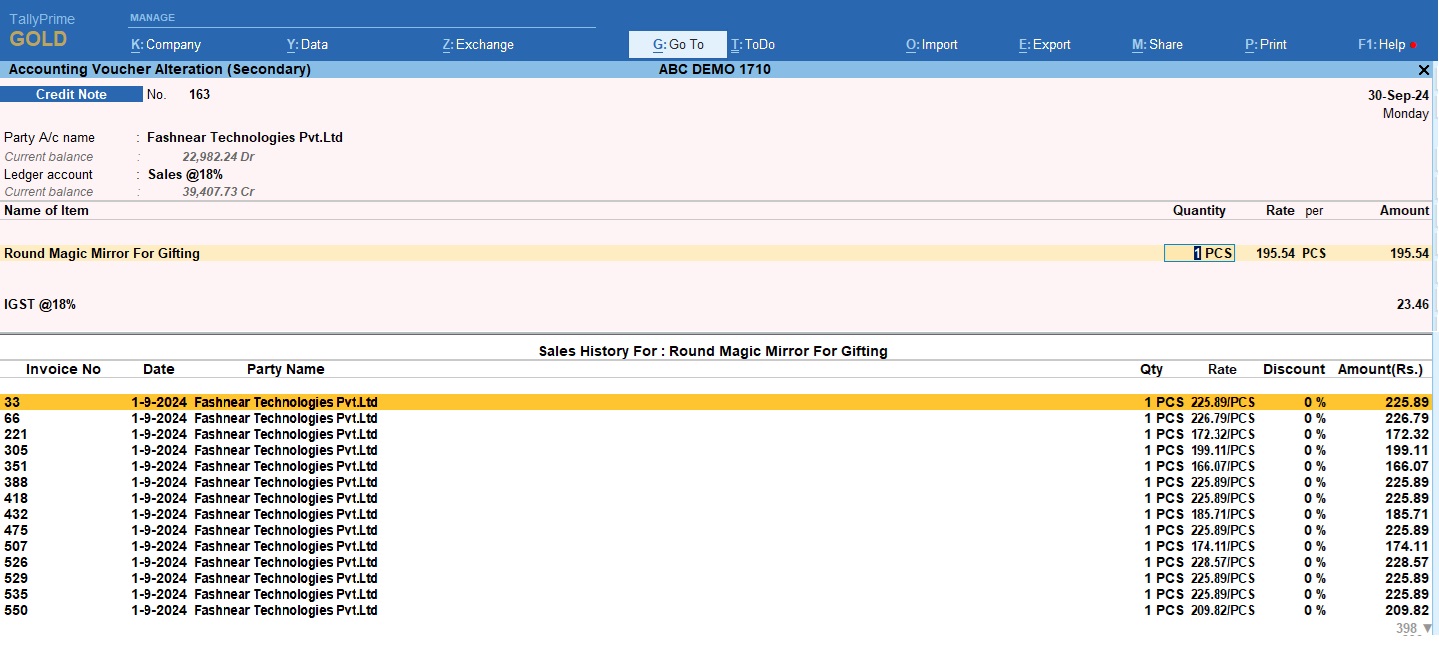
We always need something special that solve all our problems and create all things in simple way according to our need. Same things we required when invoicing in Tally. When we select any item in Tally invoice we need to see it’s history of sales and purchase with all details. Like when this item was purchased or sold, who was the customer, Date, item rate, quantity,discount etc.. Everything we need to know about that item. So today I have special full detailed item history TDL at invoice time for your Tally Prime and Tally ERP9. With this free TDL code we can see Invoice number, Date, voucher type, Party Detail, Item Rate, Discount, Amount, Godown etc. in One place. Load TDL file in Tally ERP9 or in Tally Prime, then go for invoicing , select item and press Alt+H to see full history of stock item with Sales, Purchase, Debit and Credit Note History. We can modify this TDL code according to our need. We can add some additional fields, we can remove extra fields, and it is very simple to work with Tally Erp9 and Tally Prime. Best simple tdl code to make see full Item History Detail. TDL Code: How to use Item detailed history TDL code: HOW TO USE TDL CODE: Copy above TDL code and make a text file. Save text file then load in Tally Prime (Method provided below the code) Now go to generate invoice and select item and and press ctrl+H to see item history. In item history you will find Sales and Purchase details of item with there Date, Party Name, Voucher type, Invoice number, item rate, item discount, quantity, godown etc. everything in one place. This is best free TDL to have in your Tally . Must have TDL file for Tally ERP9 and Tally Prime that can use for lifetime. This free TDL Code will perfectly work with Tally Prime. How to use Item history TDL video: Watch above video to learn : How to add see item full history tdl. How to load tdl code in Tally prime and how to use Tally shortcut button for item history TDL. FOLLOW THE BELLOW INSTRUCTIONS TO LOAD TDL FILE IN TALLY: Make a Text file of above code Save it in to your computer Copy the text file path including Name and extension (as – C:\Users\HP\Desktop\rec\itemhistory.txt) Open Tally Prime Software Click on Help and click on TDL & Addon  (for Tally Prime) Press F4 (to open a Box) Set Load TDL file on Startup – Yes Paste The path in blank space Press enter and save Now your Item full history TDL is ready to use

To Do Reminder List in Tally Prime | 2022 Best Free Tally Prime TDL

23 March 2022

Sometime in our life we forget important things and can not finish our work on time.Same things we do at business. We forget to file returns on time, We forget to collect outstanding, We forget to join important meetings, We forget to sign cheques on time, and many more things we can not do on time. To avoid this we maintain manually notes, that is not proper solution. In mostly business to maintain our books we use Tally. And in Tally we can create reminder list or Todo list to solve this problem.So today I have very special free To-Do List Tally Prime TDL for your Tally.With this To-Do Tally TDL we can maintain our to do list in Tally and can excess every time from any screen from Tally. In this we can maintain important notes about our work. We can maintain reconciliation notes about our customers.These things make it must have Tally TDL for Tally Prime.With this Free Tally Prime TDL, Now we can add To-Do List in toolbar button that will help to remember our work and help in finish works on time. HOW TO USE: Copy TDL code Make a text file and save in your computer Load in Tally ERP9 or in Tally Prime (Method provided below) Now go to To Do button provided in toolbar section beside Goto button. Open it and add important work lists with there dates. This is best free TDL to have in your Tally . Must have TDL file for Tally ERP9 and Tally Prime that can use for lifetime. This free TDL Code will perfectly work with Tally Prime. Watch above video to learn : How to add toolbar button. How to create reminder list. FOLLOW THE BELLOW INSTRUCTIONS TO LOAD TDL FILE IN TALLY: Copy above TDL Code in Text Document Save Text file in your computer Copy the text file path including Name and extension (as – C:\Users\HP\Desktop\rec\Party Detail.txt) Open Tally ERP9  OR Tally Prime Press F12 and goto Product and Features (for Tally ERP9) Click on Help and click on TDL & Addon  (for Tally Prime) Press F4 (to open a Box)  Load TDL file on Startup – Yes Paste The path in blank space Press enter and save  Now your TDL is ready to use. 

2. TDLTutorial- Installing Tally Prime Developer

29 October 2021

TDL codes we can write in note pad or any text editor software, but Tally Prime Developer is best option for writing TDL codes for Tally Prime and Tally ERP9. At time of creating Tally TDL in Tally Prime Developer, it provide instructions to create a correct TDL file and save our lots of time. And also can use lot’s of sample files provided with Tally Prime developer. TallyPrime Developer TallyPrime Developer is a comprehensive development environment designed for Tally Definition Language (TDL). Tally Definition Language or TDL is the development language of TallyPrime. Benefits of TallyPrime Developer: Easy programming by syntax colouring, tagging and navigation of code, auto-completion, project management, and so on. Ease of debugging, with error listing and diagnosis. Build, compilation/validation/execution of code from within the product. Authorization techniques for TCP ( Tally Compliant Product ) ensuring IP protection, controlled license usage, and minimized revenue leakage. Easy distribution mechanism using licensing and subscription renewals. Easy customer serial number management. Access to the complete Tally source code, as a reference. Ability to load multiple versions of the source code. Instant references to TDL API’s such as schema, definition and attributes, functions, actions and so on.  Ability to extend multilingual support to the product, customisation, modules in localized languages with the powerful dictonery manager tool Tools that help to develop and test external application integration with TallyPrime (Tally connector). How to Start Using TallyPrime Developer.  You can start using TallyPrime Developer in a matter of minutes. All you need to do is download the setup file, install TallyPrime Developer, and then, activate the license. If you want to try TallyPrime before buying it, or you are a student, then you can use the Educational version. Download and Install TallyPrime Developer Downloading the application setup from download button or click on image provided in starting of this post. Downloading Setup is the first step in starting TallyPrime Developer. Once you download TallyPrime Developer setup file, you can install the application on your computer. Installation steps remain the same regardless of the TallyPrime Developer edition. Download the setup file. Install TallyPrime Developer. Double-click setup.exe. Double-click Install New. Configure Application Path, if needed.By default, the application will be installed at C:\Program Files\TallyPrimeDeveloper. Click Configure. Double-click Application Path change the path as needed. Close the List of Configurations window. Click Install.The application gets installed, and the following window opens. Click Start Developer to launch TallyPrime Developer. You can now Update, Uninstall, Alter, and Repair from the same setup as given below: You can activate the license, and thereafter, you can start using TallyPrime Developer. Activate New License Start your TallyPrime Developer.  Go to License > Activate. If you have a Single-Site license, then enter your TallyPrime Developer Serial Number, Activation Key, and Administrator e-mail IDHowever, if you have a Multi-Site license, then refer to Multi-Site Licensing in TallyPrime Developer for further details.Note: The e-mail ID provided here will be linked to your account, and used for all future communication and licensing activities. Press Enter to proceed. The Unlock License screen appears. Enter the Unlock Key sent to your e-mail ID.Note: If you have not received the unlock key, then press F2 (Get Unlock Key). Press Enter to unlock your license. Once your license is unlocked, the activation successful message appears. Once you activate the license, then you can start writing your first TDL program and go ahead. How to Start TallyPrime Developer in Educational Version | Try it for free If you want to try TallyPrime Developer before you buy, or just want to learn how to use the product, then you can use the Educational version for free. In this case, you can try all features in the product. However, there will be a few restrictions on using some of the features.  After installation you can start your TallyPrime Developer in Educational mode. Once you do that, you will observe that the staus bar of the application shows Educational Version. Free 90 days Evaluation Version: You can use all the features of the product for 90 days. However, you cannot analyse and check the version compatibility in this version. Users of Tally.Developer 9 – Move to TallyPrime Developer If you are an existing user of Tally.Developer 9 and if your subscription is active, then you can upgrade to TallyPrime Developer. Install TallyPrime Developer in a new folder. Once the license is configured, you can continue to use TallyPrime Developer. Update/Configure Using Tally.Developer 9 License Start your TallyPrime Developer. Click License > Reactivate Enter the Administrator e-mail ID and Tally.NET password in the Reactivate License screen, as shown below: Click Submit to reactivate. A confirmation message ‘License reactivated successfully’ appears once your license is reactivated. Note: If you are the administrator of more than one site, the Reactivate License screen displays a list of sites that can be reactivated. If you want to work in Tally.Developer 9, configure the license with the same IP address and port of the Tally Gateway Server where the TallyPrime Developer License is running. Steps to configure the TallyPrime Developer license for Tally.Developer 9 Open Tally.Developer 9 Go to License > Configure existing license If you know the computer name or IP address and port number of the installed Tally Gateway Server, enter the details manually. OR Click the option Search Gateway Server(s) and select the appropriate license from the List of Compatible Tally Gateway Server screen. LearnTDL: