
Item Sales History Tally Prime TDL

2025 Best Item Sales History Tally Prime TDL | Free Tally Prime TDL to See Item Sale History

17 December 2024

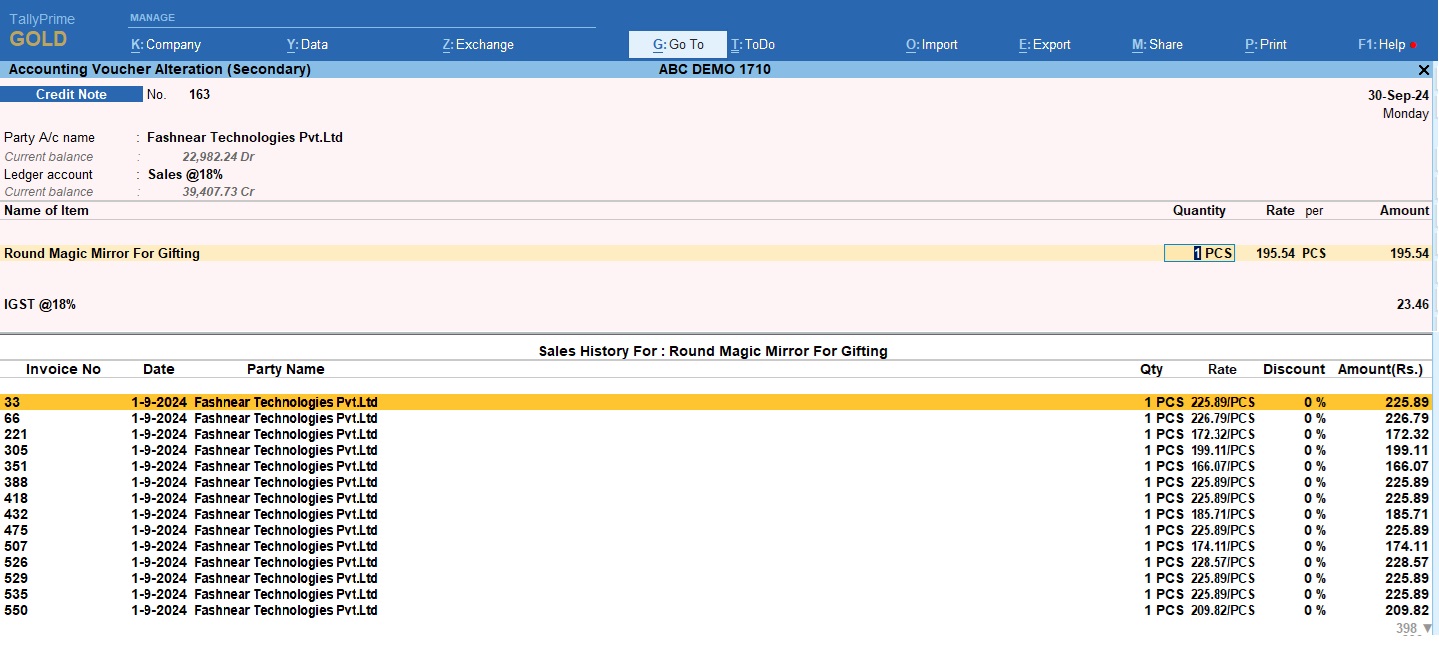
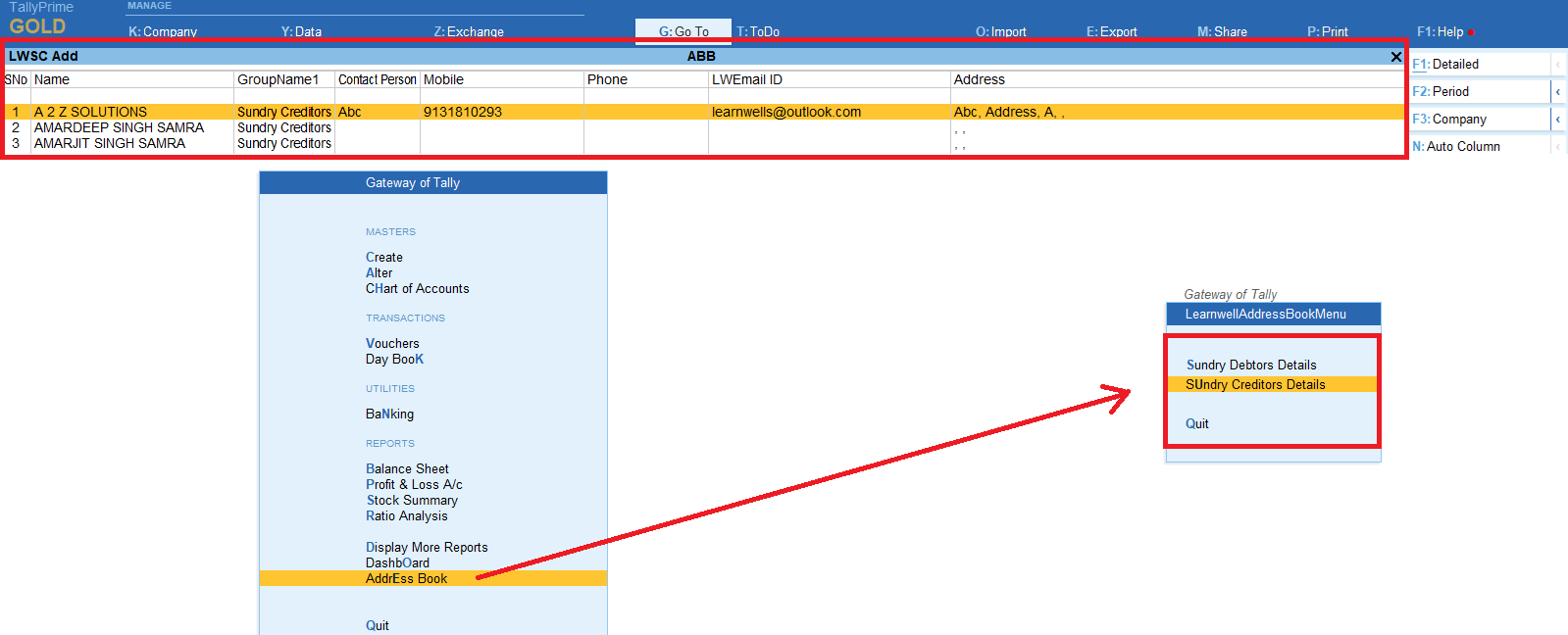
2025 Best Item Sales History Tally Prime TDL. Tally Prime is a Best Business software, you can also use it for accounting purpose. Tally is very simple software to use but sometimes we need more flexibility and more simplicity, so we use TDL files. In Tally Prime, keeping track of item sales history while invoicing is crucial for effective inventory management and invoicing, customer service, and decision-making. With this Free Tally Prime TDL to See Item Sale History provides a powerful solution, offering users instant access to comprehensive sales data for any item with just a click. Item Sales History Tally Prime TDL: Item Sales History Tally Prime TDL Code: Use the below code to see item sale history while invoicing: Also see Amazing Address Book with Contact Details TDL How to use Item Sales History Tally Prime TDL: HOW TO USE TDL TO SEE STOCK ITEM HISTORY in one click: This is best free TDL to have in your Tally . Must have TDL file for Tally ERP9 and Tally Prime that can use for lifetime. This free TDL Code will perfectly work with Tally Prime. Item Sale History at invoicing time Video: Find more videos on Youtube.com@learnwell Watch above video to learn : FOLLOW THE BELLOW INSTRUCTIONS: HOW TO LOAD TDL FILE IN TALLY:

HSN/SAC And GST Details in Voucher Entry

2022 Best Tally TDL to add HSN/SAC And GST Details in Voucher Entry | Free Tally Prime TDL for Vouchers

23 November 2022

In the GST regime, it is compulsory to mention the HSN code in all the invoices issued by a business. The HSN code is a unique identification number that is assigned to every product. It is a standardised system of classifying products and is used by all businesses that are registered under GST. The HSN code is used to determine the GST rate that is applicable to a particular product. It is also used for filing GST returns and for other compliance purposes. In Tally Prime, the HSN/SAC code and GST can be entered in the voucher entry screen itself. This Free Tally TDL to add HSN/SAC And GST Details in Voucher Entry can help you to create a perfect invoice. You may view all GST rates and Item HSN codes by using this GST detail TDL, which will be highly beneficial to you. Tally TDL Code to add HSN/SAC And GST Details in Voucher Entry: We can modify this TDL code according to our need. We can add some additional fields, we can remove extra fields, and it is must have TDL code for Tally Erp9 and Tally Prime. Best simple Tally TDL to add HSN/SAC And GST Details in Voucher Entry How to use HSN/SAC And GST Details in Voucher Entry TDL: HOW TO USE TDL to add HSN/SAC And GST Details in Voucher Entry : Also get TDL to replace Ledger and Item Name in Voucher This is best free TDL to have in your Tally . Must have TDL file for Tally ERP9 and Tally Prime that can use for lifetime. This free TDL Code will perfectly work with Tally Prime. How to use HSN/SAC And GST Details in Voucher Entry TDL video: Find more videos on Youtube.com@learnwell Watch above video to learn : FOLLOW THE BELLOW INSTRUCTIONS: HOW TO LOAD TDL FILE IN TALLY:

Item Purchase History

2022 Best Tally Prime TDL : Item Purchase History at Voucher Entry Time | Purchase History at Sale Time

30 September 2022

In our business if we sale goods or anything, we always need to track it’s profit and avoid wrong billing also we need to track Item Purchase History. At the time the most outstanding and user-friendly accounting software is Tally. The majority of Asian nations run their businesses using Tally, and once GST was introduced in India, its consumers climbed much more. Because Tally is incredibly user-friendly and packed with useful features. By including certain TDL (Tally Definition Language) files, we may make it simpler and more beneficial. So today I have special TDL for your Tally, that will change your working style with Tally Prime or with Tally ERP9. By using this TDL, we may view the history of item purchases made during sales or during voucher input. With this Item purchase history TDL code we can track buying price, discounts, quantity etc. when invoicing. Also get Tally Prime Pivot Item Purchase History at Voucher Entry Time TDL code: We can modify this TDL code according to our need. We can add some additional fields, we can remove extra fields, and it is very simple to work with Tally Erp9 and Tally Prime. Best simple tdl code to see Item purchase details at billing time. How to use Purchase History at Sale Time TDL code: HOW TO USE TDL CODE: Copy above TDL code and make a text file. Save text file then load in Tally Prime (Method provided below the code) Now go for invoice creation. After entering Item name, back to item then press F5 key to see item purchase history. This is best free TDL to have in your Tally . Must have TDL file for Tally ERP9 and Tally Prime that can use for lifetime. This free TDL Code will perfectly work with Tally Prime. How to use Purchase History TDL video: Watch above video to learn : How to use TDL file in Tally Prime. How to see stock item purchase details in invoice. How to modify voucher with TDL code. More TDL files on youtube/learnwell FOLLOW THE BELLOW INSTRUCTIONS: HOW TO LOAD TDL FILE IN TALLY: Make a Text file of above code Save it in to your computer Copy the text file path including Name and extension (as – C:\Users\HP\Desktop\rec\purchasehistory.txt) Open Tally Prime Software Click on Help and click on TDL & Addon  (for Tally Prime) Press F4 (to open a Box) Set Load TDL file on Startup – Yes Paste The path in blank space Press enter and save Now your purchase history TDL is ready to use

Sales Man and Voucher Type List in Tally Prime

2022 Best Free TDL – Sales Man and Voucher Type List in Tally Prime | Add your own list in Tally Invoice | All Type List in Invoice

24 September 2022

Now we can add Sales Man and Voucher Type List in Tally Prime Invoice easily. We can add Voucher Type, Sales Man Names, Vehicle Numbers, Sale Type (Cash or Credit etc.) and many more things in Invoice of Tally Prime and also in Tally ERP9. This is very simple TDL code to add all type list in invoice. Friends, we always practice for more accuracy and want do our work perfectly. In this if you use Tally for invoicing or all other purposes, sometime need to add sales person names or vouchers billing type in invoice to create more accuracy and productivity. Yes! with this Tally prime TDL we can see our add sales person name , voucher type etc. in invoicing. And also can add contact person name list to track outstanding details, sales revenue and for other purpose. This TDL will also help in fasten our work and complete every task on time. Also see very useful Tally Prime Pivot Reports Modification of Tally TDL We can modify this TDL code according to our need. We can add some additional fields, we can remove extra fields, and it is very simple to work with Tally Erp9 and Tally Prime. Best simple tdl code to add all type lists in Invoice vouchers. Sales Man and Voucher Type List in Tally Prime TDL Code: How to use own list in Tally Invoice TDL code: HOW TO USE TDL CODE: Copy above TDL code and make a text file. Save text file then load in Tally Prime (Method provided below the code) Now go for invoice creation. You will get list of vouchers in invoice. This is best free TDL to have in your Tally . Must have TDL file for Tally ERP9 and Tally Prime that can use for lifetime. This free TDL Code will perfectly work with Tally Prime. How to use All Type List in Invoice TDL video: Watch above video to learn : How to create TDL file for Tally How to add own list in Invoice. How to modify voucher with TDL code. More TDL files on youtube/learnwell FOLLOW THE BELLOW INSTRUCTIONS TO LOAD TDL FILE IN TALLY: Make a Text file of above code Save it in to your computer Copy the text file path including Name and extension (as – C:\Users\HP\Desktop\rec\list in invoice.txt) Open Tally Prime Software Click on Help and click on TDL & Addon  (for Tally Prime) Press F4 (to open a Box) Set Load TDL file on Startup – Yes Paste The path in blank space Press enter and save Now your Sales Man and Voucher Type List in Tally Prime TDL is ready to use

Tally Prime Pivot

2022 Best report to develop for MIS all-new Tally Prime Pivot Report.

17 September 2022

We shall talk about Tally Prime Pivot in this article. Everyone has heard of the Excel pivot, but less people are familiar with the Tally Pivot report. With the use of a new Tally tool, we can download the sales register in comprehensive format, which we can then use to create a pivot table. This Tally Prime All-in-One report includes voucher and item information as well as Ledger and GST information as well as shipment and order information. This allows us to develop pivot tables in Excel that meet our needs since it contains all the fields in both vertical and horizontal format. The finest Tally Prime feature for producing an all-in-one Tally Prime report is this one. How to use Tally Prime Pivot Report: From Tally main screen – Goto Display – Account Books – Sales Register – Open sales Register in Voucher form (List of All Vouchers) After open sales register change period as per your required date. Press Export (Alt+E) Click on Current (Ctrl+E) Click on Configure Click on Show More Then set Export for pivot Table -Yes Also can change starting options to Yes for details format Follow below image Also set export format to Excel and locate folder path in next options. After setting all things back to export menu by pressing ESC key Click on Send button to export in Excel Now your Tally Pivot report will be exported as pivot table format and then you can make reports with excel pivot. See the below video to how to create pivot table in excel Video to How to create pivot table in excel with Tally Pivot report: Also get daily business TDL Watch above video to learn : How to generate Tally Pivot report for MIS. How to create pivot table in Excel . More TDL files and Tally help videos on youtube/learnwell All in one Tally Prime Report: Following the creation of these reports, you may get anything from Tally Prime and produce ideal MIS reports. The same thing is applicable to the purchase register. This all-in-one Tally Prime report, Tally Pivot option, will not be supported by the Credit Note and Debit Note register. Check additional Yes/No choices as well for flawless reporting.

Detailed Voucher TDL

2022 Best Free Tally Prime Detailed Voucher TDL for Voucher with Batch, HSN, Godown | TDL to Add Item all details in Voucher screen

15 September 2022

Hello Friends! Today I have special Detailed Voucher TDL for your Tally. If you want to do everything on perfect way then this TDL Voucher with Batch, HSN, Godown can help a lot. Sometime when we use Tally Prime or Tally ERP9 for invoicing, then we required to create invoice quickly and on perfect way. In invoice voucher we sometime we need to Batch name, Godown Name, HSN code or other GST details related to Item in voucher screen. So we can track item details and avoid mistakes. With this Free Tally Prime Detailed Voucher TDL can add Batch, HSN, Godown etc. in voucher screen. We can modify this TDL code according to our need. We can add some additional fields, we can remove extra fields, and it is very simple to work with Tally Erp9 and Tally Prime. Best simple tdl code to item all details in voucher screen. Also get Item full detailed chart TDL Detailed Voucher TDL Code: How to use Item All details in voucher screen TDL code: HOW TO USE TDL CODE: Copy above TDL code and make a text file. Save text file then load in Tally Prime (Method provided below the code) Now go for invoice creation. After selecting stock item, you will get item Batch, Godown, HSN etc in voucher screen. This is best free TDL to have in your Tally . Must have TDL file for Tally ERP9 and Tally Prime that can use for lifetime. This free TDL Code will perfectly work with Tally Prime. How to add Batch, HSN, Godown in Voucher video: Watch above video to learn : How to use TDL file in Tally Prime. How to see item details in voucher. How to modify voucher with TDL code. More TDL files on youtube/learnwell FOLLOW THE BELLOW INSTRUCTIONS TO LOAD TDL FILE IN TALLY: Make a Text file of above code Save it in to your computer Copy the text file path including Name and extension (as – C:\Users\HP\Desktop\rec\Item detailed voucher.txt) Open Tally Prime Software Click on Help and click on TDL & Addon  (for Tally Prime) Press F4 (to open a Box) Set Load TDL file on Startup – Yes Paste The path in blank space Press enter and save Now your Detailed Voucher TDL is ready to use

Item full details TDL

Amazing Item full details TDL for Tally Prime | Best free new Tally TDL to see Item All details | Item All in One details TDL

13 September 2022

With this amazing item full details TDL we can see and export item every detail in one place. So I called it Item All in One details TDL. With this Tally TDL we can extract item all details with there godown and opening balance. Friends, if we maintain stock items in Tally then sometime we need to update GST, HSN or any other detail of item. To updating stock item we go items one by one and open then change it,s details. And also we make MIS reports or Stock summary reports to track our business. So this Tally TDL will be very useful to see Item all details in one place. We can modify this TDL code according to our need. We can add some additional fields, we can remove extra fields, and it is very simple to work with Tally Erp9 and Tally Prime. Best simple tdl code to see Item full details. Also get Bank Reconciliation TDL code to add clearing Date in Ledger Item full details TDL Code: How to use Item All in One details TDL code: HOW TO USE TDL CODE: Copy above TDL code and make a text file. Save text file then load in Tally Prime (Method provided below the code) Now you will find item report tab in Tally main screen (Gateway of Tally). Here you can see item all details with godown and opening etc. This is best free TDL to have in your Tally . Must have TDL file for Tally ERP9 and Tally Prime that can use for lifetime. This free TDL Code will perfectly work with Tally Prime. How to use item full details TDL file video: Watch above video to learn : How to use TDL file in Tally Prime. How to see item report in Tally. More TDL files on youtube/learnwell FOLLOW THE BELLOW INSTRUCTIONS TO LOAD TDL FILE IN TALLY: Make a Text file of above code Save it in to your computer Copy the text file path including Name and extension (as – C:\Users\HP\Desktop\rec\Item report.txt) Open Tally Prime Software Click on Help and click on TDL & Addon  (for Tally Prime) Press F4 (to open a Box) Set Load TDL file on Startup – Yes Paste The path in blank space Press enter and save Now your Item full details TDL is ready to use

Tally Prime TDL code to import Stock item

2022 Best Free Tally Prime TDL code to import Stock item | Free TDL for Stock Item Import | Free Excel to Tally Item Import for Tally Prime | Free Text to Tally Item Import for Tally Prime | Stock Import into Tally Prime

9 September 2022

With this Free Tally Prime TDL code to Import Stock item, we can import from Excel to Tally and also from Text to Tally. We do business and sales many items. And now Tally is most popular software for business accounting. If you maintain Tally then this post can change your working style. Sometime there are lot’s of stock items to create in Tally to track stock item records and generate item summary. But sometime doing too many entries in Tally become lengthy process. So today I have something special for your Tally. With this free Tally Prime TDL we can import Stock Items in Tally easily. With this free TDL code we can import stock items into Tally Prime with Item name, Group and unit. It will very helpful to create bulk stock master into Tally. We can use Excel or Text file as our data to import items. We can modify this TDL code according to our need. We can add some additional fields, we can remove extra fields, and it is very simple to work with Tally Erp9 and Tally Prime. Best simple tdl code to import inventory into Tally Prime. Also get Invoice wise profit TDL Tally Prime TDL code to import Stock item : How to use Stock item import in Tally Prime TDL code: HOW TO USE TDL CODE: Copy above TDL code and make a text file. Save text file then load in Tally Prime (Method provided below the code) In Main screen (Gateway of Tally) you will find a tab in the name of Item Import. With this item import Tab we can import our stock item list in Tally. Instructions are given in Tally with this TDL Tab This is best free TDL to have in your Tally . Must have TDL file for Tally ERP9 and Tally Prime that can use for lifetime. This free TDL Code will perfectly work with Tally Prime. How to use Item Import TDL video: For More videos logon to Youtube/Learnwell Watch above video to learn : How Create excel sheet to import items. How select file and load in tally to import stock items. Import stock items and ledgers in Tally Prime and Tally ERP9 with full details FOLLOW THE BELLOW INSTRUCTIONS TO LOAD TDL FILE IN TALLY: Make a Text file of above code Save it in to your computer Copy the text file path including Name and extension (as – C:\Users\HP\Desktop\rec\Item Import.txt) Open Tally Prime Software Click on Help and click on TDL & Addon  (for Tally Prime) Press F4 (to open a Box) Set Load TDL file on Startup – Yes Paste The path in blank space Press enter and save Now your Tally Prime TDL code to import Stock item is ready to use

Invoice wise profit

2022 Best Free TDL to see invoice wise profit in one click | Invoice wise profit Button | Best Tally Prime TDL

8 September 2022

Today with this TDL file we generate invoice wise profit in one click. Everyone need fast and simple method to use everywhere. And in a business always need a stability and profit increment. If you want to do business smoothly then always need a profit tracker. If you use Tally Prime or Tally ERP9 then you can use Sales Profit button directly in Tally through this invoice wise profit TDL file. Yes! With this amazing free Tally ERP9 and Tally Prime TDL code we can add a profit showing button on our Tally home screen. This Tally TDL will will help you to see profit of every invoice. This Tally TdL make our work more effective and accurate. This is must have  TDL file for Tally ERP9 and Tally Prime that can use for lifetime.  Invoice wise Profit Button TDL Code: How to use Invoice wise profit TDL code: HOW TO USE TDL CODE: Copy above TDL code and make a text file. Save text file then load in Tally Prime (Method provided below the code) In Main screen or Voucher or Ledger screen you will find Sales Profit button. After clicking on sales profit button or by pressing Ctrl+F8, can see invoice wise profit in details. This is best free TDL to have in your Tally . Must have TDL file for Tally ERP9 and Tally Prime that can use for lifetime. This free TDL Code will perfectly work with Tally Prime. How to create TDL file for Sales Profit Button video: Also create stop lower price billing TDL Watch above video to learn : How to add button in Tally. How to use action key in TDL. FOLLOW THE BELLOW INSTRUCTIONS TO LOAD TDL FILE IN TALLY: Make a Text file of above code Save it in to your computer Copy the text file path including Name and extension (as – C:\Users\HP\Desktop\rec\Profit Button.txt) Open Tally Prime Software Click on Help and click on TDL & Addon  (for Tally Prime) Press F4 (to open a Box) Set Load TDL file on Startup – Yes Paste The path in blank space Press enter and save Now your Inovice wise sales profit TDL is ready to use

add GST and Mobile number in Voucher

2022 best free Tally Prime TDL to add GST and Mobile number in Voucher Screen TDL | Contact details in voucher screen

6 September 2022

Today I have best free Tally Prime TDL for your Tally to add GST and Mobile number in Voucher Screen . If you want to do proper accounting and followup with your customers then always you need to update yourself even when you do entries in voucher. With this free TDL code we can add Party Mobile Number and Party GST Number in Voucher screen of Sales, Purchase, etc.that will help to communicate with customer and increase productivity and accuracy of our work. We can modify this TDL code according to our need. We can add some additional fields, we can remove extra fields, and it is very simple to work with Tally Erp9 and Tally Prime. Best simple code to work with party mobile number and GST number at invoice time. TDL Code to add GST and Mobile number in Voucher Screen: How to use Contact Details in Invoice screen TDL code: HOW TO USE TDL CODE: Copy above TDL code and make a text file. Save text file then load in Tally Prime (Method provided below the code) Now go to Sales voucher and select party name. You will get party contact person name and his mobile number (if you added in Ledger). This is best free TDL to have in your Tally . Must have TDL file for Tally ERP9 and Tally Prime that can use for lifetime. This free TDL Code will perfectly work with Tally Prime. How to create TDL file for voucher video: Also get Ledger Additional details TDL Watch above video to learn : How to customize voucher screen through TDL. How to add contact details in voucher screen. More TDL files on youtube/learnwell FOLLOW THE BELLOW INSTRUCTIONS TO LOAD TDL FILE IN TALLY: Make a Text file of above code Save it in to your computer Copy the text file path including Name and extension (as – C:\Users\HP\Desktop\rec\contact in voucher.txt) Open Tally Prime Software Click on Help and click on TDL & Addon  (for Tally Prime) Press F4 (to open a Box) Set Load TDL file on Startup – Yes Paste The path in blank space Press enter and save Now your contact Details in voucher screen TDL is ready to use