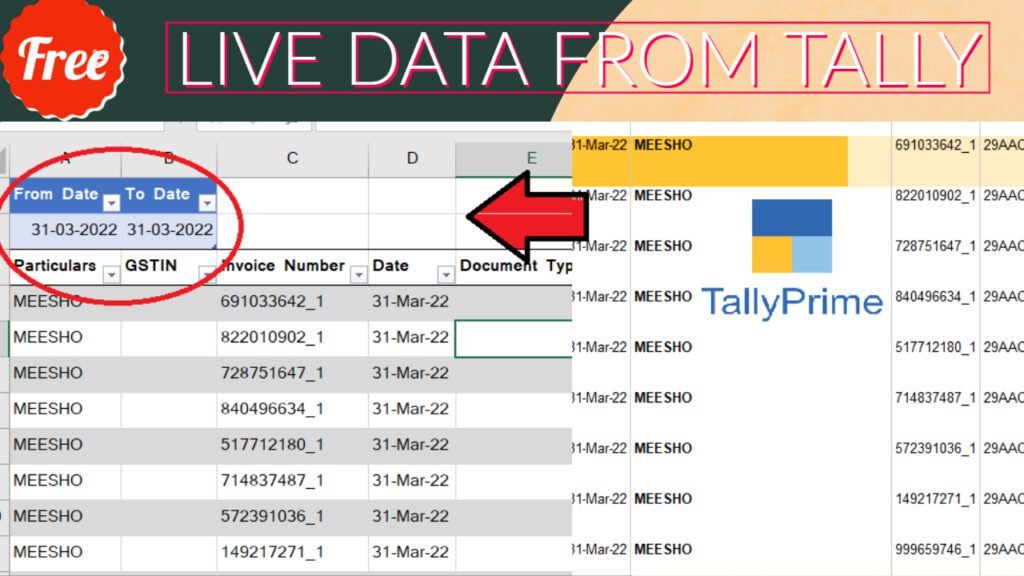

Excel power query is an amazing tool in excel. With Excel Power Query / Excel Power BI we can collect Tally Data in to Excel through ODBC connection. And can import Tally Live Data in to Excel. Please go through this post see how to write codes in power query to import Live Tally Data in to Excel.
If you see previous post, you observe that there we can change dates in our code only. So we need to change date etc. from our excel sheet without going in power query code. This will be simple method to collect data from Tally.
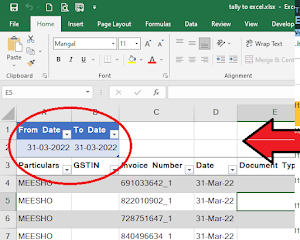
How to Connect Excel Cell Value (Date) with Power Query:
- Write Headings for Cell Value (Like : From Date and To Date)
- Fill Date below the Headings
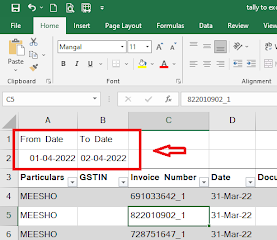
- Select Dates with Header.
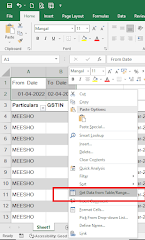
- Right Click on selected cells
- Choose Get data from Table/Range
- Click on My Table has headers and Click OK
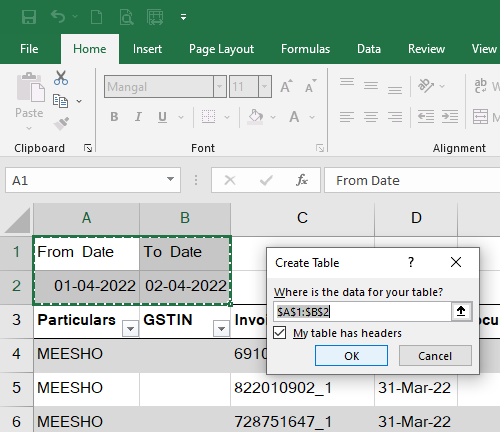
- Now you will reach in power query code.
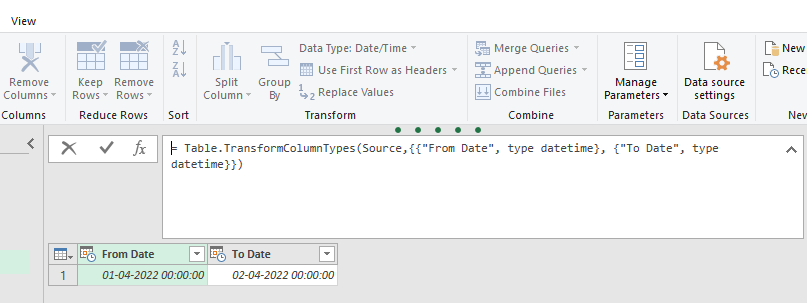
- In power query Dates will come with time.
- Remove time by changing datetime into Date in power query code
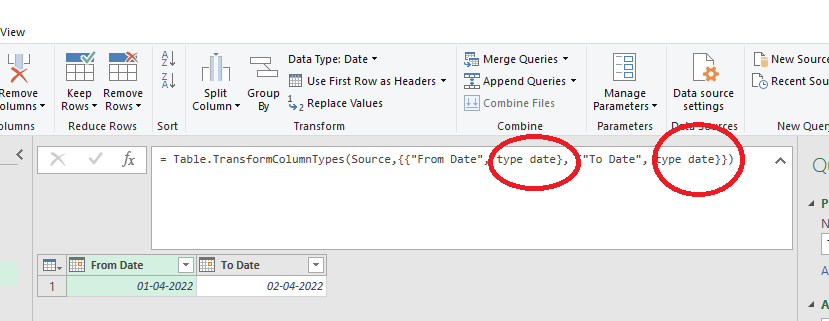
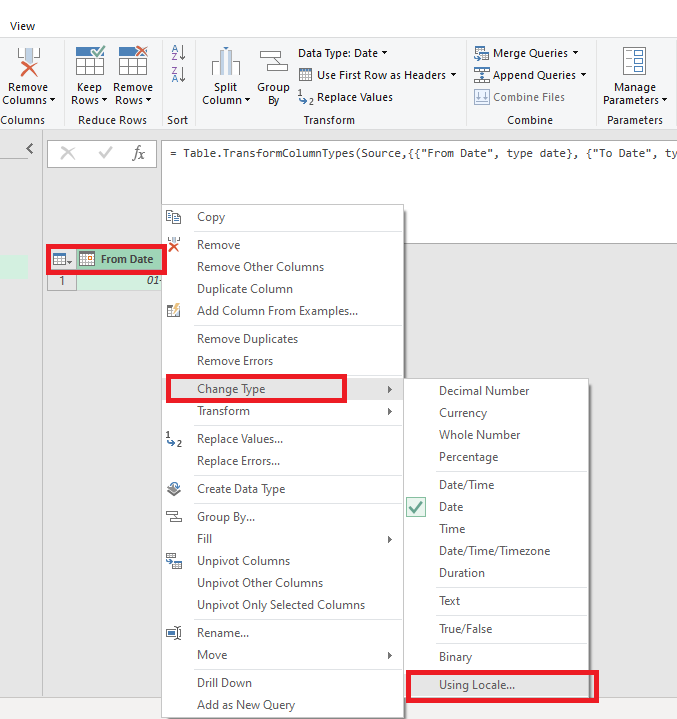
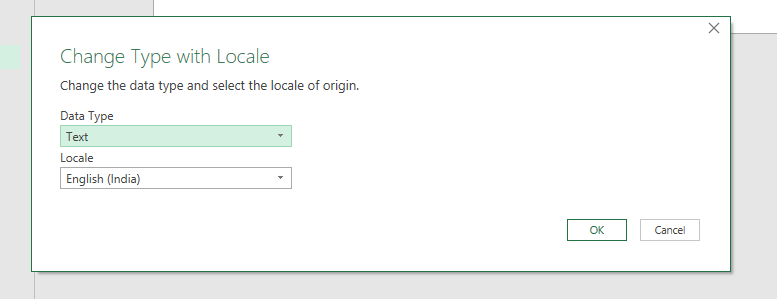
- After changing in Date, Right Click on From Date header – Change Type – Using Locale
- Keep Data Type Text and Locale – English and Press OK
- Repeat same process fro To Date (Right click on ToDate – Change Type – Using Locale – Text and English – OK)
- Right Click on Date and choose Add as new query
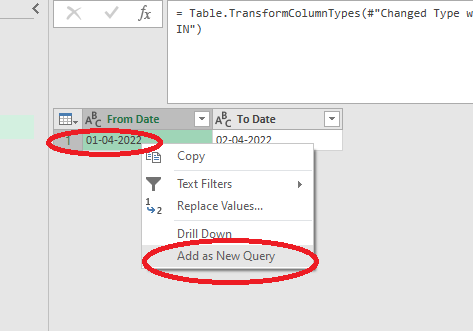
- Repeat same process for second date
- Now Change From Date and To Date name in properties (name without any space)
- Now You can use FromDate and ToDate in another power query code of this sheet.
- Like: body = Text.Replace(Text.Replace(_body, “DATE1”, FromDate), “DATE2”, ToDate),
For More clarification Please watch this video:
-
How to Integrate AI into TallyPrime: Generate Instant Reports with Free TDL
Accounting in TallyPrime has always been reliable and fast, but searching through complex menus and configuring custom reports can still eat up valuable time. What if you could simply type a prompt like “Show me party-wise outstanding receivables” or “Generate GST summary for this month” and get an instant report right inside Tally? With modern…
-
TallyPrime Claude AI Connector | Connect Tally with Claude Desktop
Have you ever imagined your Tally operating as an interactive AI assistant? Picture this: typing a simple sentence and getting a full CA-format balance sheet, P&L statement, audit review, or GSTR-2A reconciliation in seconds. With the Learn Well Tally Claude Connector, you can seamlessly connect TallyPrime to Claude AI Desktop—turning manual accounting routines into an…
-
How to Send Invoices Directly from TallyPrime to WhatsApp (New Automation TDL)
In today’s fast-paced digital business environment, waiting days for an email invoice to be opened is a thing of the past. Customers now expect instant communication, and WhatsApp has become the ultimate tool for quick business transactions. But if you are using Tally Prime, exporting a PDF and manually sending it to a client’s WhatsApp…