

We may use this free Tally TDL code to generate a flawless invoice for our clients if you print an invoice from Tally but it doesn’t seem great due to a random stock item serial. Yes! We may now print invoices with alphabetically ordered items.
By sorting stock items in Tally Invoice, we may create a flawless invoice with this item sorter (Tally TDL). We may add or remove new fields from this Tally Prime and Tally ERP TDL code in accordance with our needs, and it will function flawlessly with Tally Erp9 and Tally Prime. The best basic TDL code for sorting stock items alphabetically in invoice printing.

We can modify this TDL code according to our need. We can add some additional fields, we can remove extra fields, and it is very simple to work with Tally Erp9 and Tally Prime. Best simple tdl code to make invoice with alphabetical items.
TDL Code:
[#Part : EXPINV InvInfo]
Repeat : EXPINV InvDetails : Sorted Inventory Entries
[Collection : Sorted Inventory Entries]
Type : Inventory Entries : Voucher
Sort : Default : -$Parent : StockItem:$StockItemName, $StockItemName
How to use Invoice with alphabetical Item TDL code:
HOW TO USE TDL CODE:
- Copy above TDL code and make a text file.
- Save text file then load in Tally Prime (Method provided below the code)
- Now go to generate invoice and fill multiple stock items
- Then take a print of that invoice voucher. You will find all items in alphabetical order in print.
This is best free TDL to have in your Tally . Must have TDL file for Tally ERP9 and Tally Prime that can use for lifetime. This free TDL Code will perfectly work with Tally Prime.
How to use Item history TDL video:
Watch above video to learn :
- How to create a TDL to sort item names.
- How to create collection with repeat option for Tally TDL
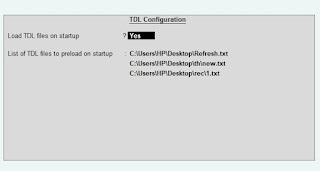
FOLLOW THE BELLOW INSTRUCTIONS TO LOAD TDL FILE IN TALLY:
- Make a Text file of above code
- Save it in to your computer
- Copy the text file path including Name and extension (as – C:\Users\HP\Desktop\rec\alphabetialItems.txt)
- Open Tally Prime Software
- Click on Help and click on TDL & Addon (for Tally Prime)
- Press F4 (to open a Box)
- Set Load TDL file on Startup – Yes
- Paste The path in blank space
- Press enter and save
- Now your alphabetical item in invoice TDL is ready to use
-
How to Send Invoices Directly from TallyPrime to WhatsApp (New Automation TDL)
In today’s fast-paced digital business environment, waiting days for an email invoice to be opened is a thing of the past. Customers now expect instant communication, and WhatsApp has become the ultimate tool for quick business transactions. But if you are using Tally Prime, exporting a PDF and manually sending it to a client’s WhatsApp…
-
Free Excel to Tally
Tally XML Converter Use Excel,Text,CSV etc file. Columns should be same as Templates. Paste Data-Choose XML Type-Click on Create File and Download. Paste XML file path in Tally Import to Create Entry. Click for Learning Videos LEARNWELL VIDEO. Create file
-
PHP
Import Data into Tally Import Data into Tally Excel File: